

Using Version Control in Anvil
This section explains how Anvil’s version control system works and how to use it. If you are new to version control, read our introduction first or start with the quickstart.
Automatic commits
Every change you make to an Anvil app produces a commit. In order to avoid a huge string of commits, if you make changes in quick succession, Anvil will “squash” each new change into the latest commit – that is, it will create a new commit with your latest changes and the previous changes, and the same parent as the previous commit, then move the branch to point at the new commit. This effectively replaces the latest commit with the new one (In Git parlance, this is called “amending” a commit.)
If you have made a recent change subject to “squashing”, the Version History will display it with an outlined circle and an Editing label:
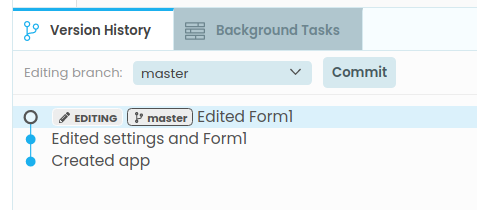
If you would like to “freeze” that commit, so that any new changes occur in a new commit, click the Commit button. You can enter a message to describe this commit, or keep the default message.
Anvil automatically freezes commits 15 minutes after the last edit, or if anything else refers to them (for example, if you merge this commit into another branch, or create a new branch pointing at this commit, or clone the repository with git).
Managing branches and commits
You manage branches and commits from the Version History panel, found in the Bottom Panel of the Anvil Editor.
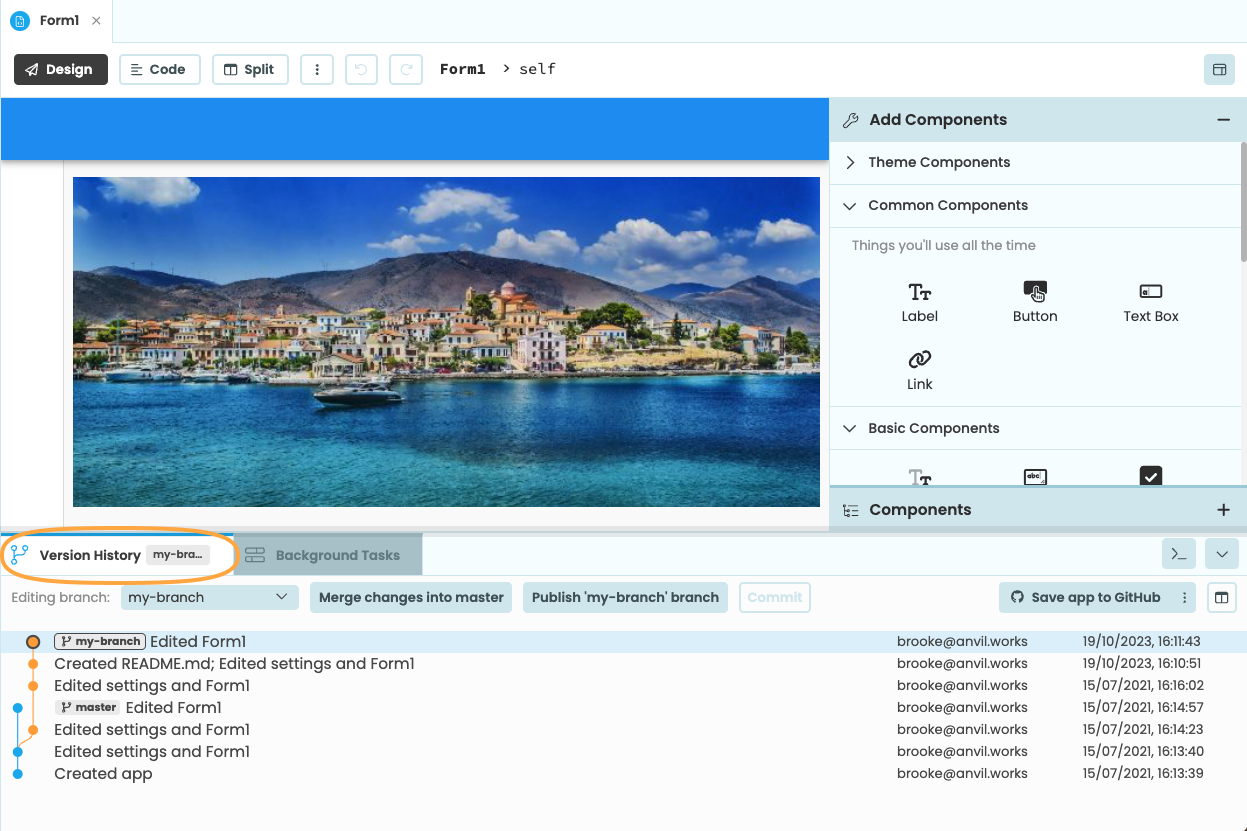
The Version Control tab in the Anvil Editor
Viewing changes
Click on any commit in the Version History to select it. Anvil will display the changes made in that commit.
Checking out branches and commits
Double-click any commit in the Version History to open that version of the app in the Anvil Editor. If there is a branch pointing at that commit, you will switch to editing that branch. You can also choose which branch to edit by choosing from the Editing branch dropdown.
If you double-click a commit that does not have a branch pointing at it, you will open that commit in read-only mode. You can see that snapshot in the editor, and you can run it, but you cannot make changes. If you want to make changes, you can create a new branch and add commits to that branch. (This is similar to “detached HEAD” mode in the Git command line tools.)
Creating and deleting branches
To create a branch, right-click on any commit in the Version History and select Create new branch.
To delete a branch, right click on the commit and choose Delete branch [branch name]. You can’t delete the branch you’re currently editing – switch to a different branch first! You can’t delete the master branch.
Resetting a branch
You can reset the branch you are editing, so it points to any commit. To do this, right click on the commit you want to move your branch to, and select Reset ‘[branch name]’ branch to here. This will not delete any commits – the commit you last pointed to will remain visible – it will just change which commit this branch points to.
Merging code
There are two ways to merge code.
1. The “Merge changes into master” button
If you are editing a branch that is not master, you can click the Merge changes into master button. This merges changes from your branch into the master branch.
2. Merge a commit into your branch
If you want to merge changes into the branch you are currently editing, right click on the commit whose changes you would like to merge, and choose Merge. This will merge changes from that commit into the branch you are editing.
If Anvil finds conflicts while performing the merge, you will have to resolve them before continuing – see Resolving Conflicts for more information.
Resolving Conflicts
If you try to merge overlapping changes – for example, both sides have edited the same component, or the same line of code – then the changes will conflict, and you will have to resolve these conflicts by hand.
When an attempted merge fails with conflicts, Anvil will notify you with a dialog, and open the Conflicts tab in the bottom panel, which will show you which changes conflicted:
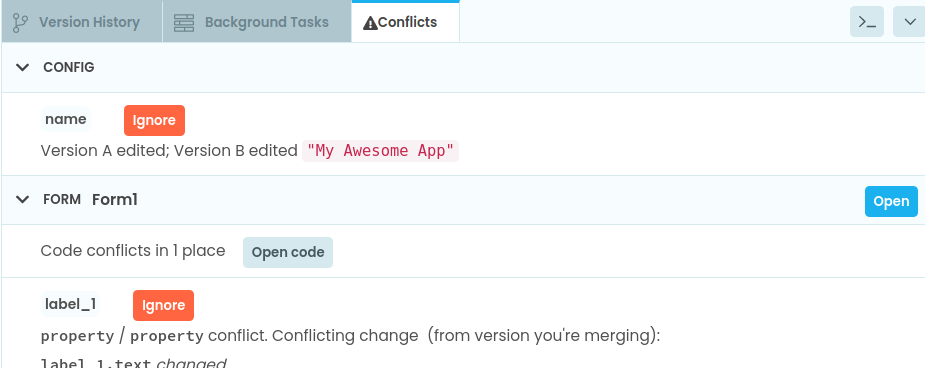
The Conflicts tab
If you look at the Version History tab, you will see that you are resolving merge conflicts:
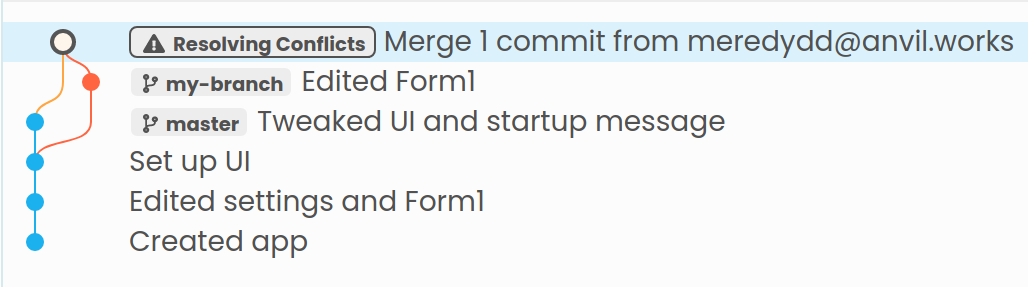
The Version History tab, showing a merge where we are resolving conflicts
You can switch away to other branches or versions, and pick up where you left off merging by double-clicking the merged version. While you are merging, every change amends the merge commit: you cannot “freeze” the commit until you have resolved all merge conflicts.
Code conflicts
If both sides of a merge have changed the same line(s) of code, you will see a code conflict:

The Conflicts tab, showing a code conflict
If you open the code in the editor, you will see markers identifying the conflicting lines, with different colours for each side of the merge:
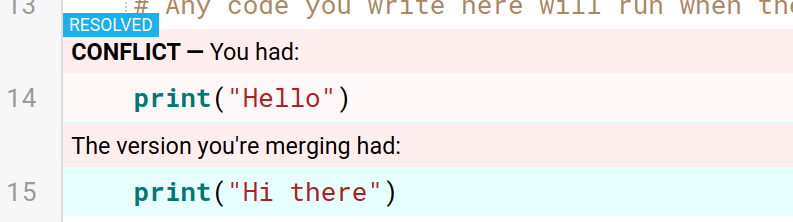
The Conflicts tab, showing a code conflict
You must now edit the text in this range to resolve the conflict. When you have done this, click the Resolved button on the conflict marker.
Component conflicts
If both sides of a merge have changed the same component(s) on a form, you will see a component conflict:
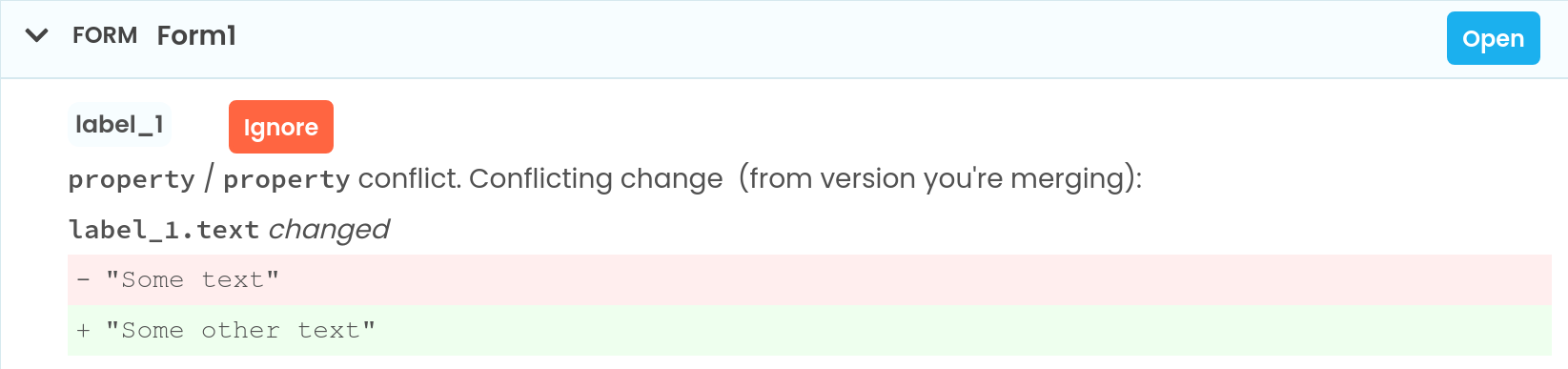
The Conflicts tab, showing a component conflict
When component conflicts occur, Anvil “picks one side” of the merge, and displays those in the Designer (usually the changes that are already on the branch you’re merging into), and displays the conflicting changes in the Conflicts tab.
You must now edit the components to resolve the conflict, by incorporating as much of the conflicting changes as you want. When you have done this, click the Ignore button on the conflict marker.
Config conflicts
If both sides of a merge have changed the same piece of an app’s configuration, you will see a configuration conflict:
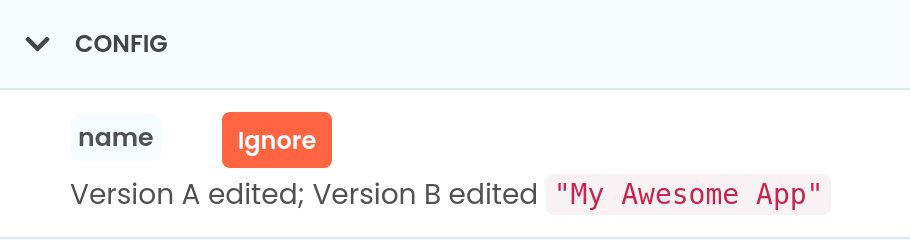
The Conflicts tab, showing a config conflict
As with component conflicts, in case of configuration conflicts Anvil will choose a side (usually the target branch) and leave those changes in your app’s source code, while displaying the conflicting changes in the Conflicts tab.
You must now edit the configuration of your app to resolve the conflict. When you have done this, click the Ignore button on the conflict marker.
Marking conflicts as resolved
Once you have resolved all the individual conflicts in a form, module, or your app’s configuration, you need to confirm that this item is fully resolved:
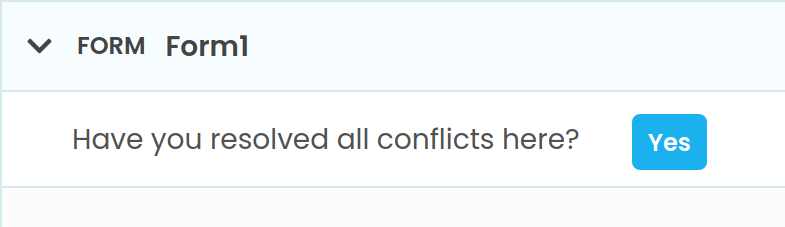
The Conflicts tab, prompting for confirmation
Once you have confirmed that all conflicts as resolved, you can click the Complete merge button in the Version History tab:
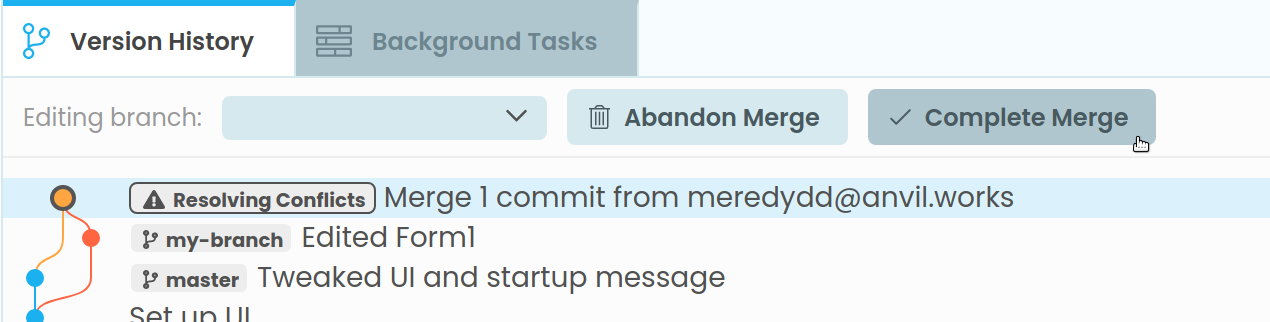
Completing the merge
When the target branch moves
When you’re resolving merge conflicts, you or someone else might edit the target branch (that’s the branch you’re merging into) before you’re finished. For example:
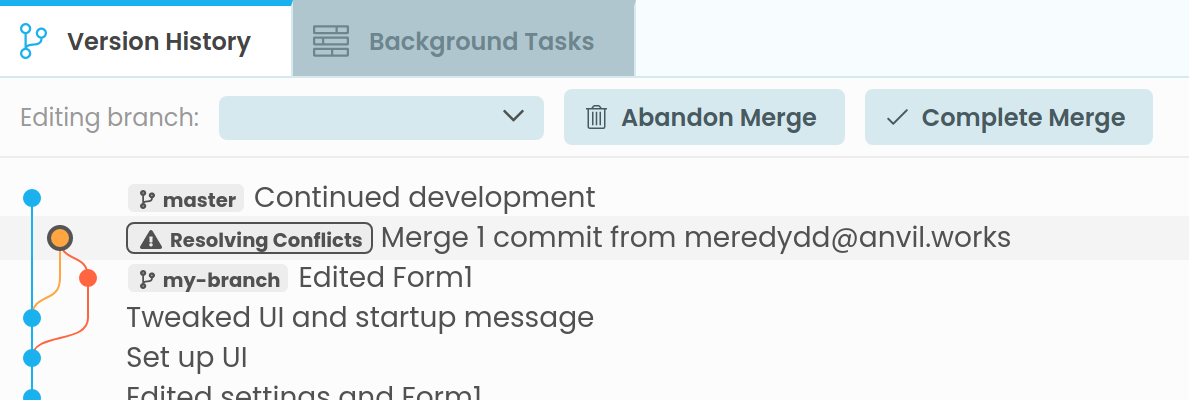
The master branch has moved while we were resolving conflicts
If this has occurred, then you’ll see this dialog when you click Complete Merge.
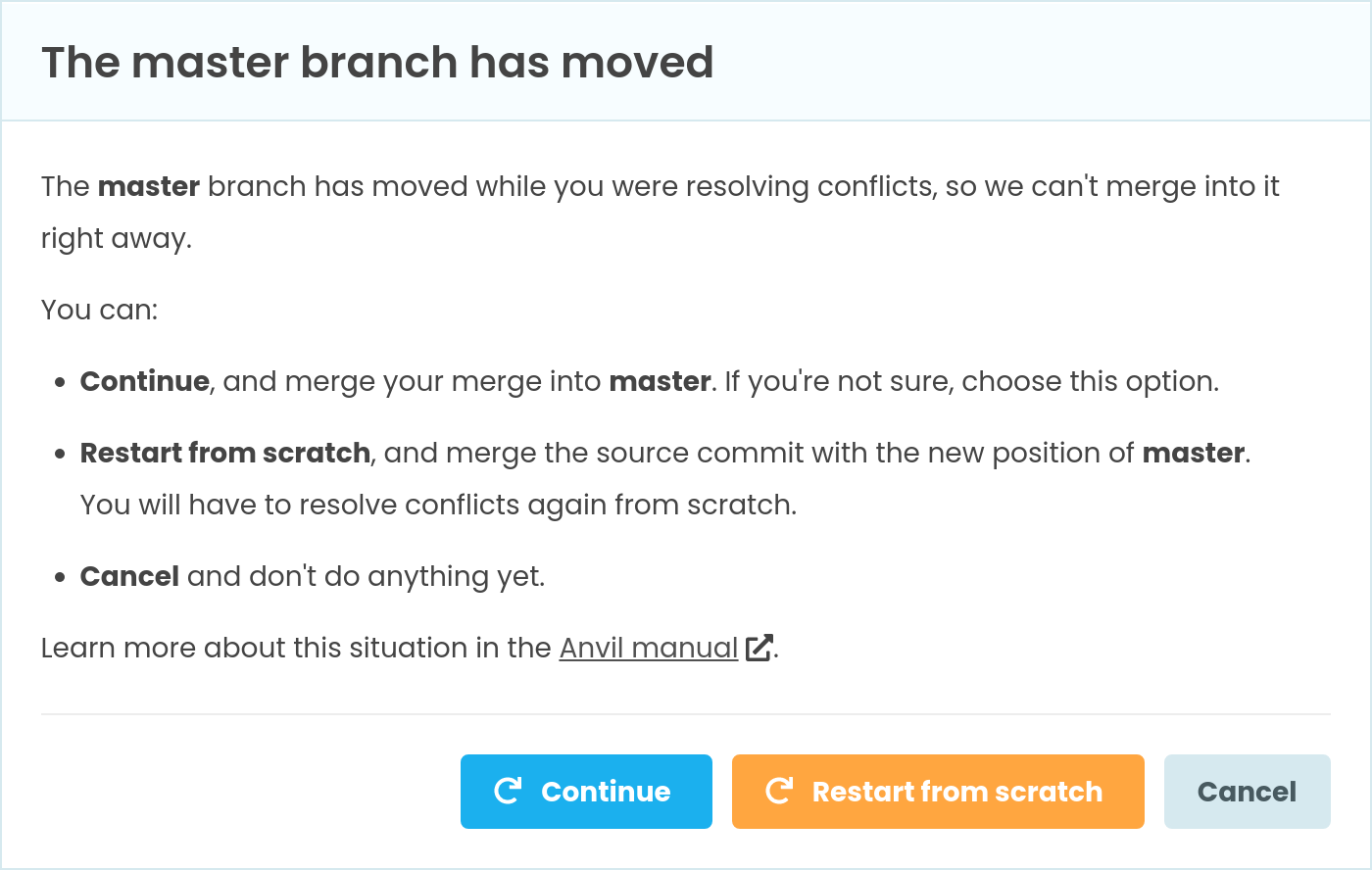
You now have three options:
1. Continue the merge
In this case, we take our merged, resolved changes, and merge those into the target branch. Because we’re keeping our resolved merge, we won’t have to resolve those conflicts again.
If we took this option in the example above, we would produce the following version history.
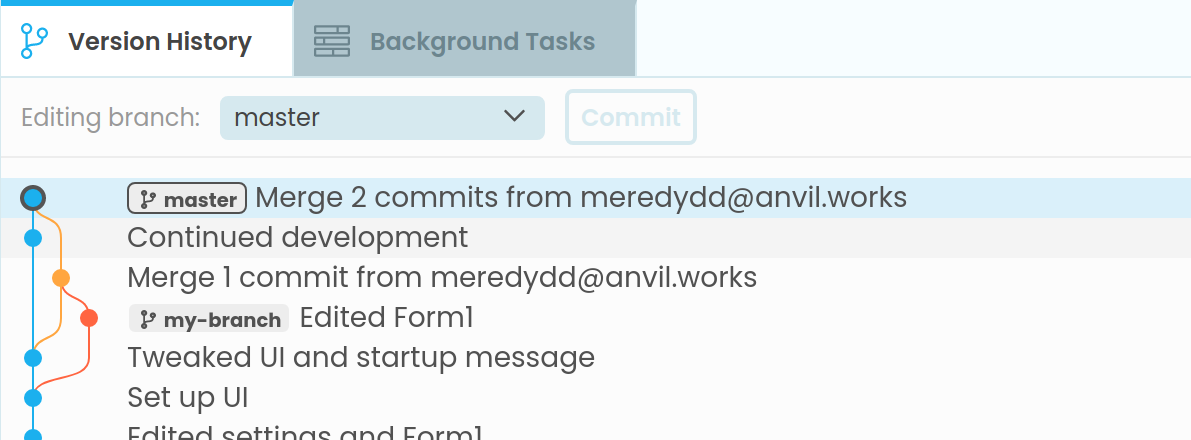
You can see what’s happened: We’ve done a merge from my-branch (which had conflicts), then we’ve done another merge to merge it with the latest changes in master.
2. Restart the merge from scratch
In this case, we try the merge again, merging the same source (in this case, my-branch) with the latest commit on the target branch. Because we’re restarting from scratch, you will have to resolve any merge conflicts again from scratch.
If we took this option in the example above, we would see the same set of conflicts we saw before, and we’d have to resolve them:
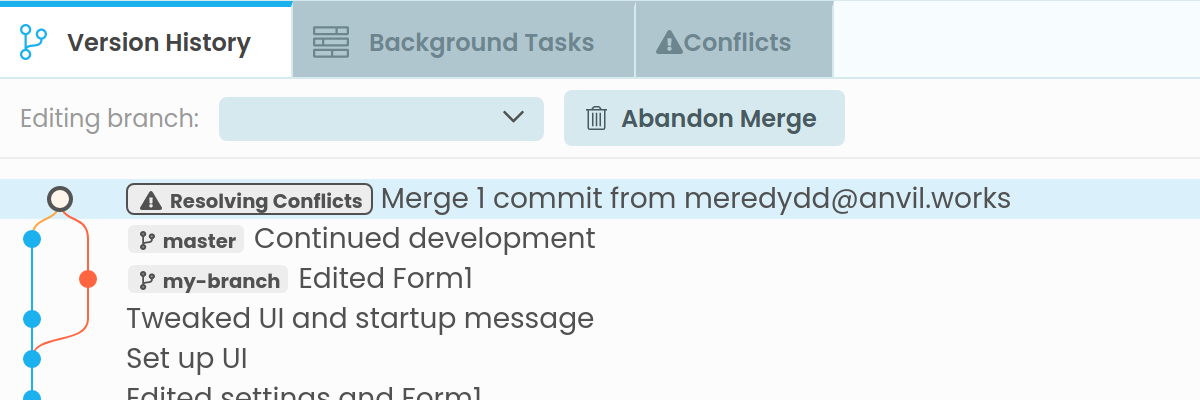
When we finished resolving and completed the merge, we would see the following end result:
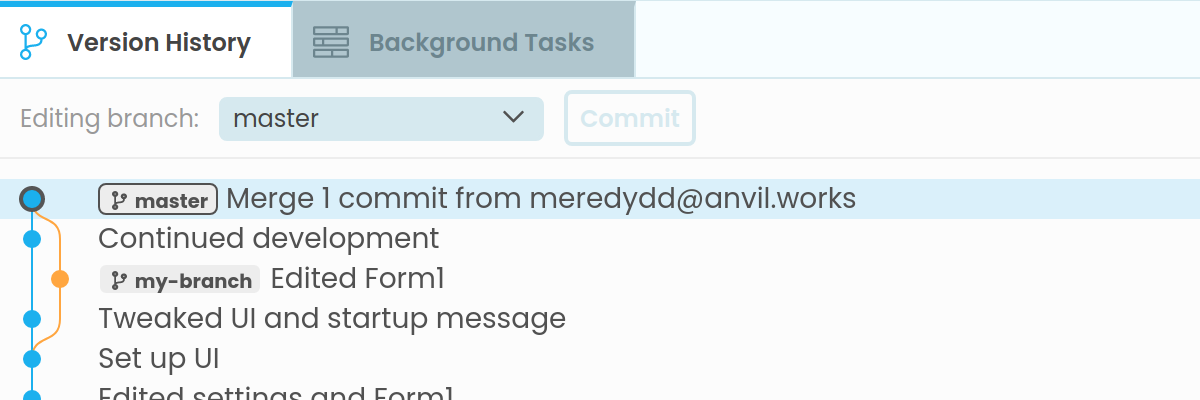
As you can see, restarting the merge will leave you a cleaner version history, at the expense of resolving your conflicts all over again.
3. Cancel
This leaves the merge where it is, in an unresolved state. We can choose to abandon it, or to try again and choose one of the other two options.
Publishing versions of your app
The Version History panel allows you to deploy your app on the web, with a publicly-accessible URL, and to choose which version your users see.
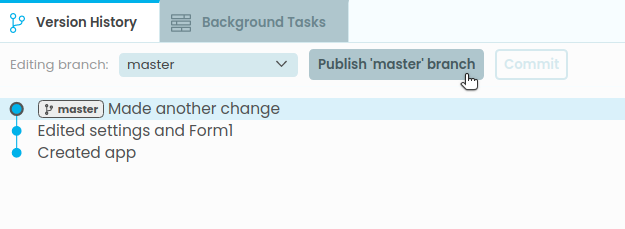
If you are editing a particular branch, you can click the Publish <branch name> button. This will ensure that whenever someone visits your app’s URL, they load the app from the current position of that branch (typically master):
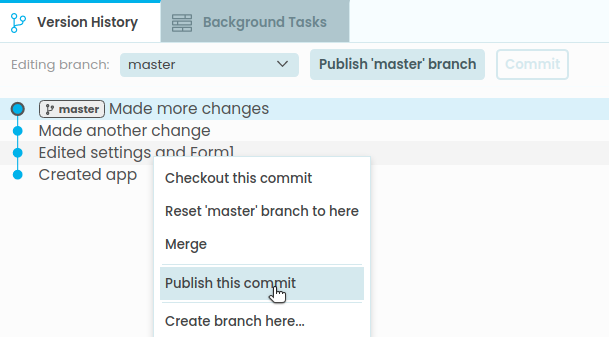
To publish a specific commit, you can right-click on that commit and choose Publish this commit. This will ensure that whenever someone visits your app’s URL, they load the app from this commit:
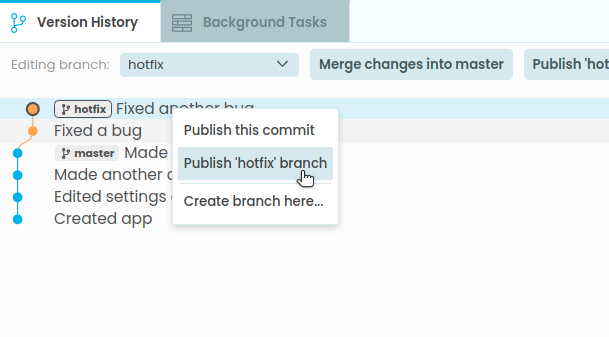
If you right-click on a commit pointed to by a branch, you can choose whether to publish the branch (so that the published version updates when the branch moves) or the commit (so that exact commit will be published, regardless of whether the branch moves):
Classic apps
If you are editing an app created in the Classic editor, and you have not migrated to environments, then the “Publish…” button will not appear. You can right-click on a particular version to publish or un-publish it.
This has the same effect as in the Classic editor: namely, it creates or deletes a branch called published. If the published branch is present, your users will load that version of your app. Otherwise, they will load the master branch of your app.
Advanced
Anvil supports advanced deployment configurations, with multiple deployment environments. In this case, it doesn’t make sense to talk about a single “published version” of your app.
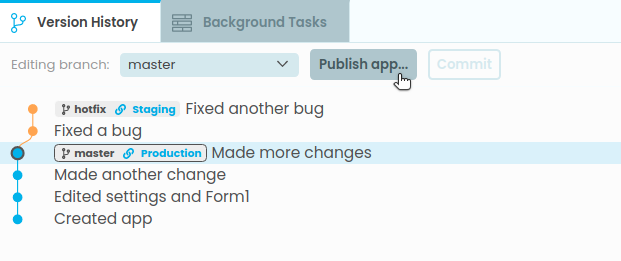
Therefore, if you have manually created deployment environments for your app, you won’t see the Publish this commit or Publish this branch option in the right-click menu. Instead, the Publish app… button will open the Environments dialog so that you can configure your deployment:
Do you still have questions?
Our Community Forum is full of helpful information and Anvil experts.