

Form Templates
Every Form in Anvil inherits from a template class called <<FormName>Template. For example, Form1 inherits from Form1Template. This class is defined by an HTML file which represents the UI of your Form. When you build a Form visually in Design view, the Anvil Designer updates this file for you. You can also view and edit this file directly in the HTML view of the Form Editor.
Form templates are of three types:
Forms with a Layout
When a Form uses a Layout, it inherits from WithLayout and behaves like the Layout it uses. In terms of component placement, rather than placing components anywhere on the Form, you place them into slots defined by the Layout.
A Form using a Layout will have a layout attribute on its <anvil-form> element in HTML view:
<anvil-form layout="form:HomePage">
    ...
</anvil-form>
See Layouts for more details on creating and using Layouts.
Forms with a container
When a Form uses a container, it inherits from a container type that determines how components are placed and arranged. For example, a Form that inherits from a ColumnPanel will stack components vertically.
A Form using a container will have a container attribute on its <anvil-form> element in HTML view:
<anvil-form container="ColumnPanel">
    ...
</anvil-form>
Blank Panel Forms
Blank Panel Forms are the simplest. Their templates inherit from ColumnPanel. In terms of component placement, they behave exactly like a ColumnPanel.
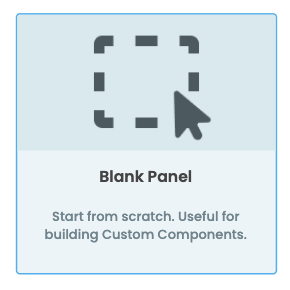
Blank Panel Forms behave like ColumnPanels.
RepeatingPanel templates
When you add a RepeatingPanel, to a Form, Anvil automatically creates a new Form called ItemTemplateN. (where N is a number). This Form is repeated once for each element in the RepeatingPanel’s items list, and inherits from
ColumnPanel. In terms of component placement, they also behave exactly like a ColumnPanel.
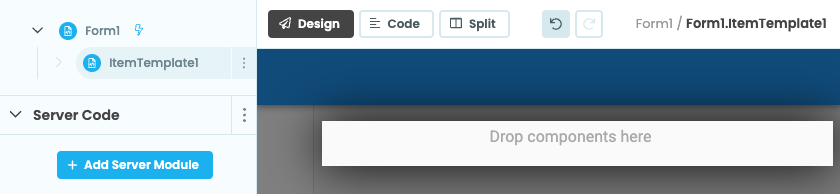
Auto-generated RepeatingPanel Templates behave like ColumnPanels.
Data Grid row templates
When you add a DataGrid to a Form, it contains a RepeatingPanel by default. The Form associated with this RepeatingPanel will be called RowTemplateN and inherits from DataRowPanel. In terms of component placement, they behave exactly like a DataRowPanel.
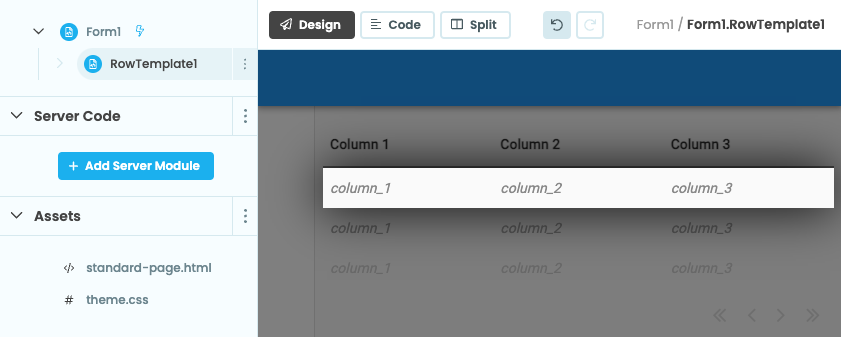
Inside Data Grids, auto-generated RepeatingPanel templates are
split into the Data Grid’s columns.
HTML Forms
When a Form’s top-level element is an HTML element or an <anvil-component>, rather than an <anvil-form>, it is an HTML Form and inherits from HtmlComponent. HTML Forms are useful for creating custom components and reusable layouts with HTML. See Forms as HTML in the Editor for more information about editing your Form’s HTML.
Built-in themes come with pre-defined HTML Form layouts. For example, when you create a Minimal Theme app, you get a Form with an app bar at the top and a main content area.
The app bar and main content area are defined in the BaseLayout, which is an HTML Form. The BaseLayout contains slots for the app title, app bar actions, and the main content area. This replaces the older theme pattern where the Standard Page Form used an HtmlTemplate with its html property set to a standard-page.html file in Assets.
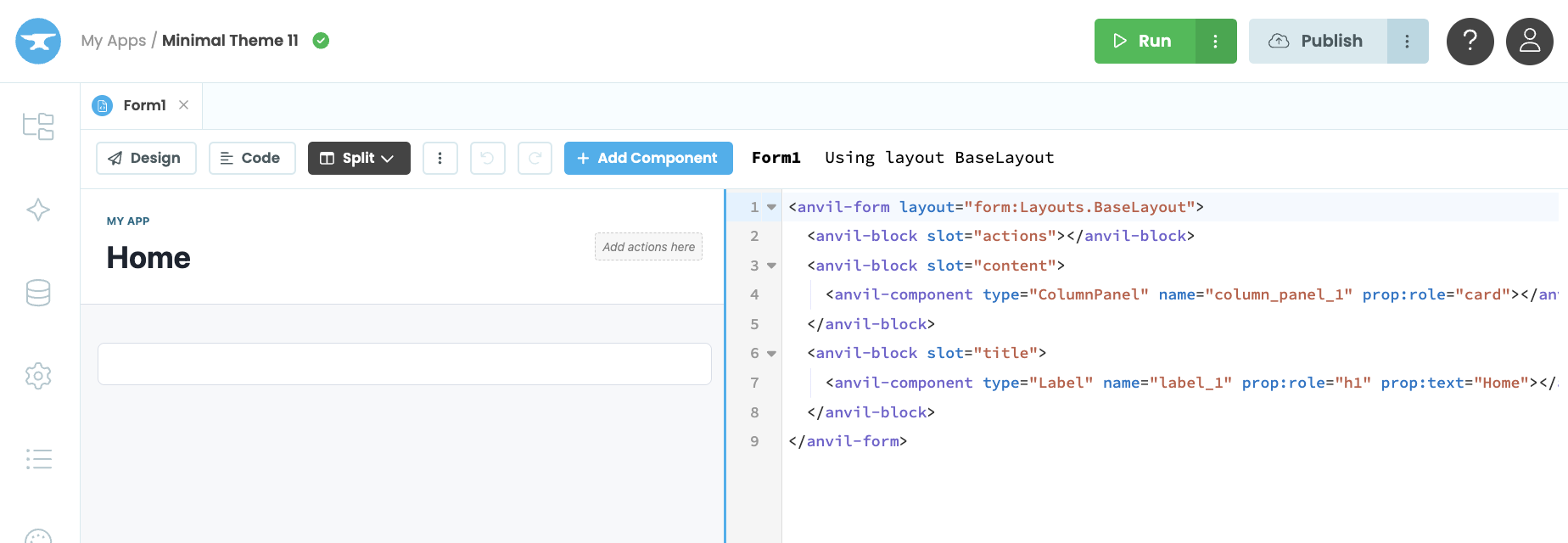
The Minimal Theme Form.
HTML Forms are the recommended replacement for Legacy HTMLTemplate Forms.
Legacy HTMLTemplate Forms
Some older apps and built-in themes use Legacy HTMLTemplate Forms. These Forms inherit from HtmlTemplate and have an html property that points to an HTML file in Assets, such as standard-page.html or a Custom HTML file.
Legacy HTMLTemplate Forms are different from HTML Forms. An HTML Form inherits from HtmlComponent because its top-level template element is ordinary HTML, which can contain both HTML elements and Anvil components. A Legacy HTMLTemplate Form uses an HtmlTemplate container whose HTML is defined separately. See Legacy Layouts from HTML for more details.
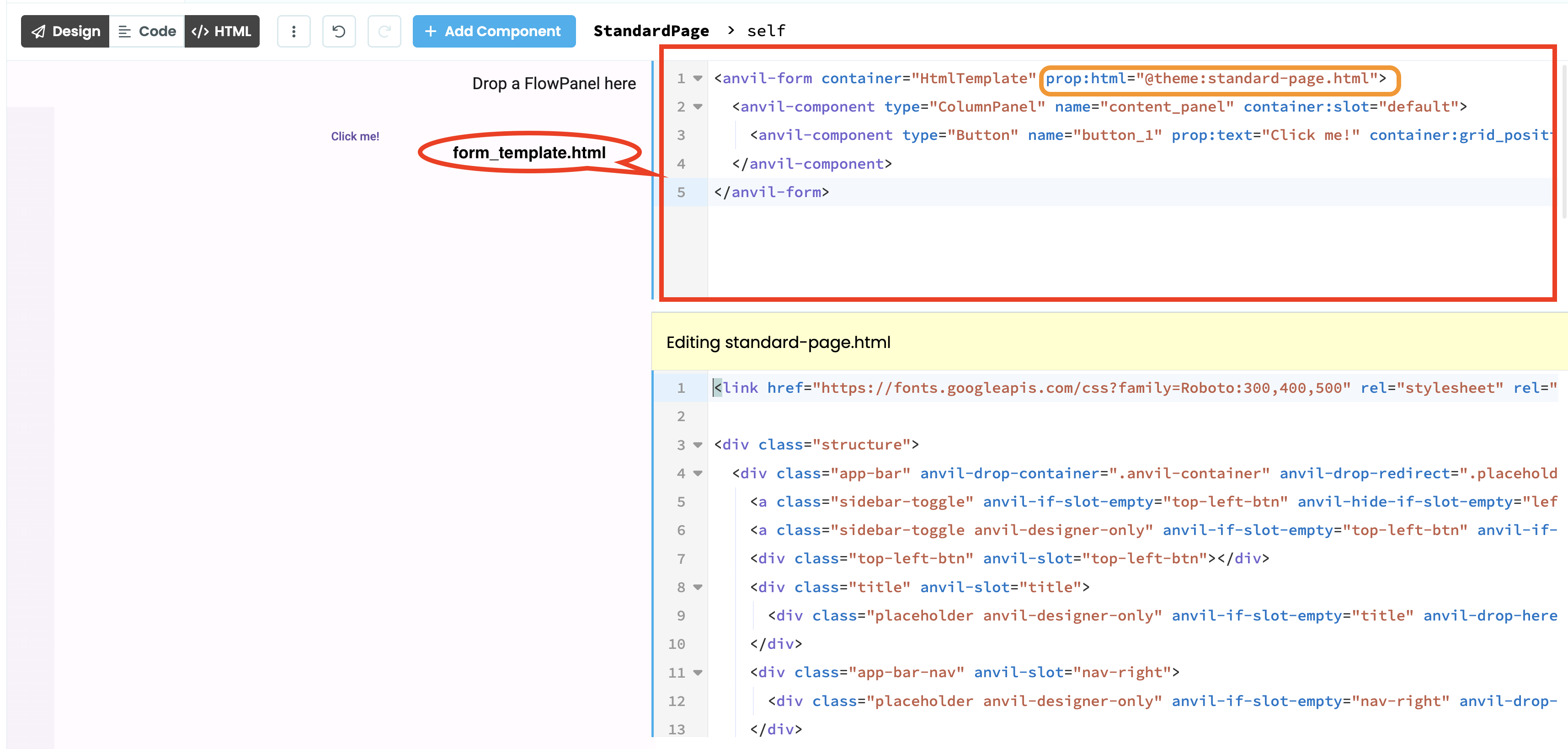
The Standard Page Form from the Material Design 3 theme
Do you still have questions?
Our Community Forum is full of helpful information and Anvil experts.