

Forms in the Anvil Editor
The Anvil Editor lists all the Forms in your app in the App Browser. Clicking on a Form in the App Browser opens it in the Form Editor, where you can view and edit it in four modes:
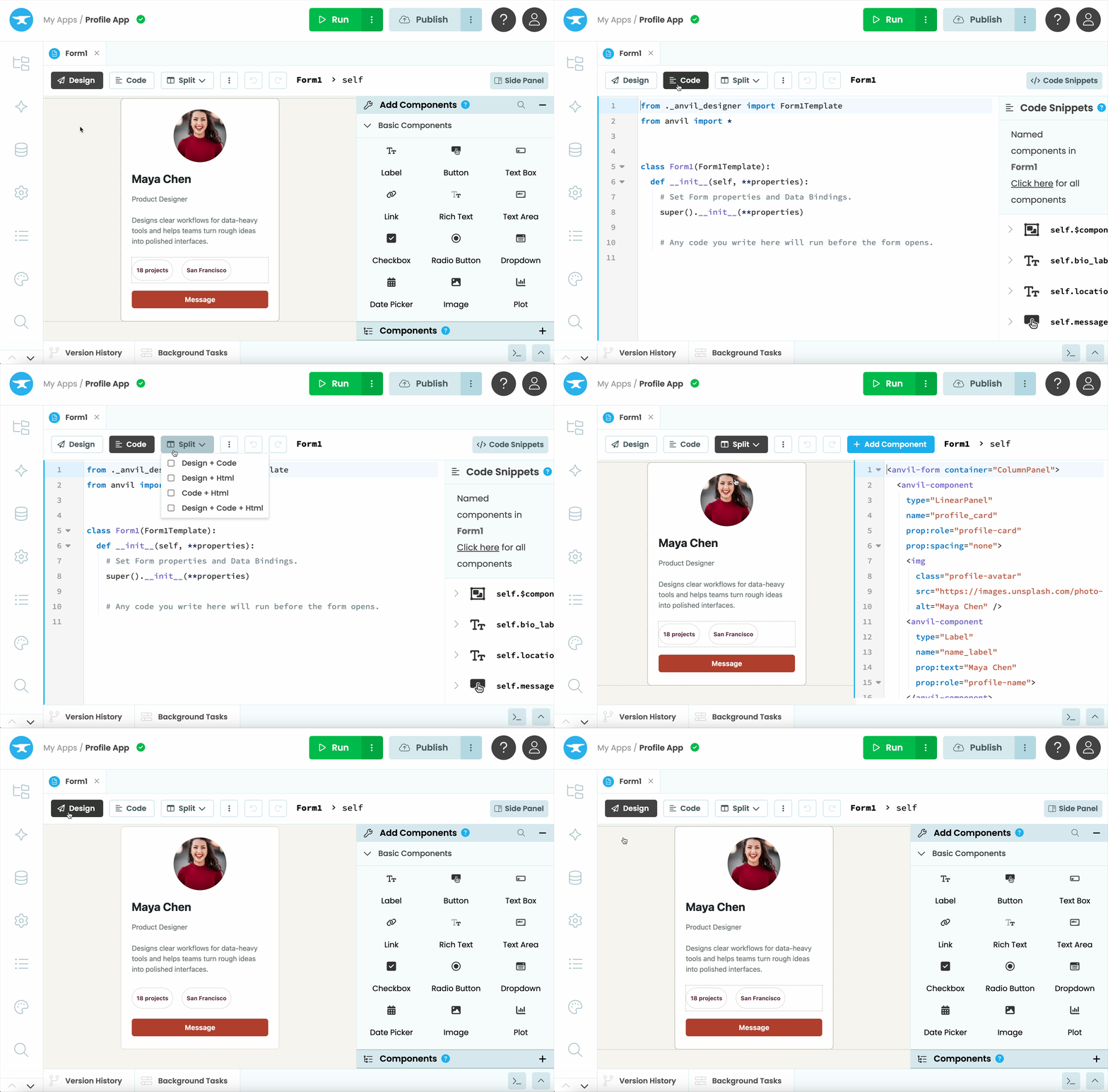
Switching between views in the Form Editor.
Design view
In Design view, you build your Form’s interface visually, by dragging and dropping components from the Toolbox onto the Form.
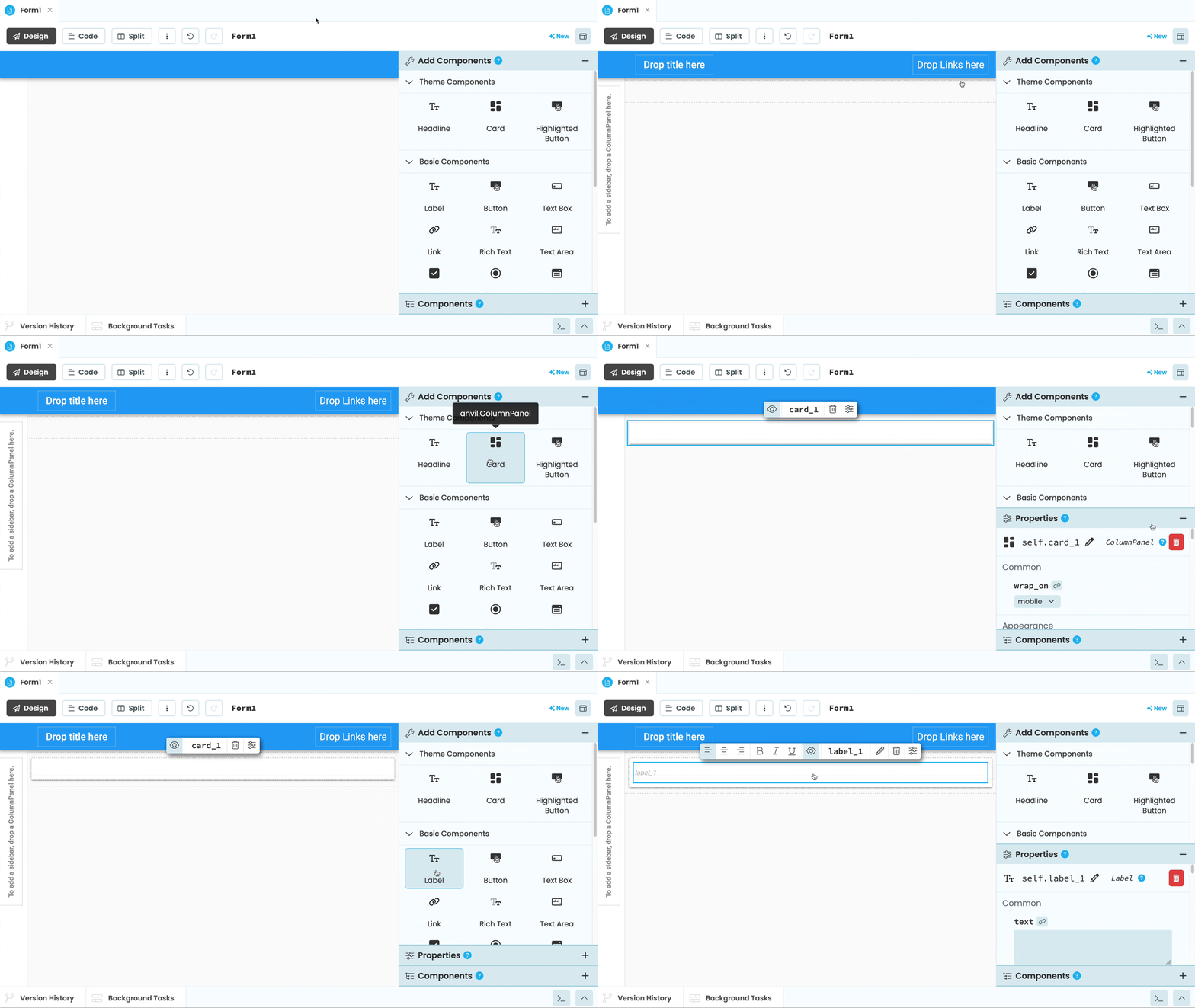
Adding components to a Form in Design view
HTML view
In HTML view, you can see the code that defines your Form’s interface. You can inspect and edit the structure of your Form as text, using HTML tags alongside Anvil components.
Changes you make in HTML view are reflected in Design view, and changes you make in Design view are reflected in HTML view.
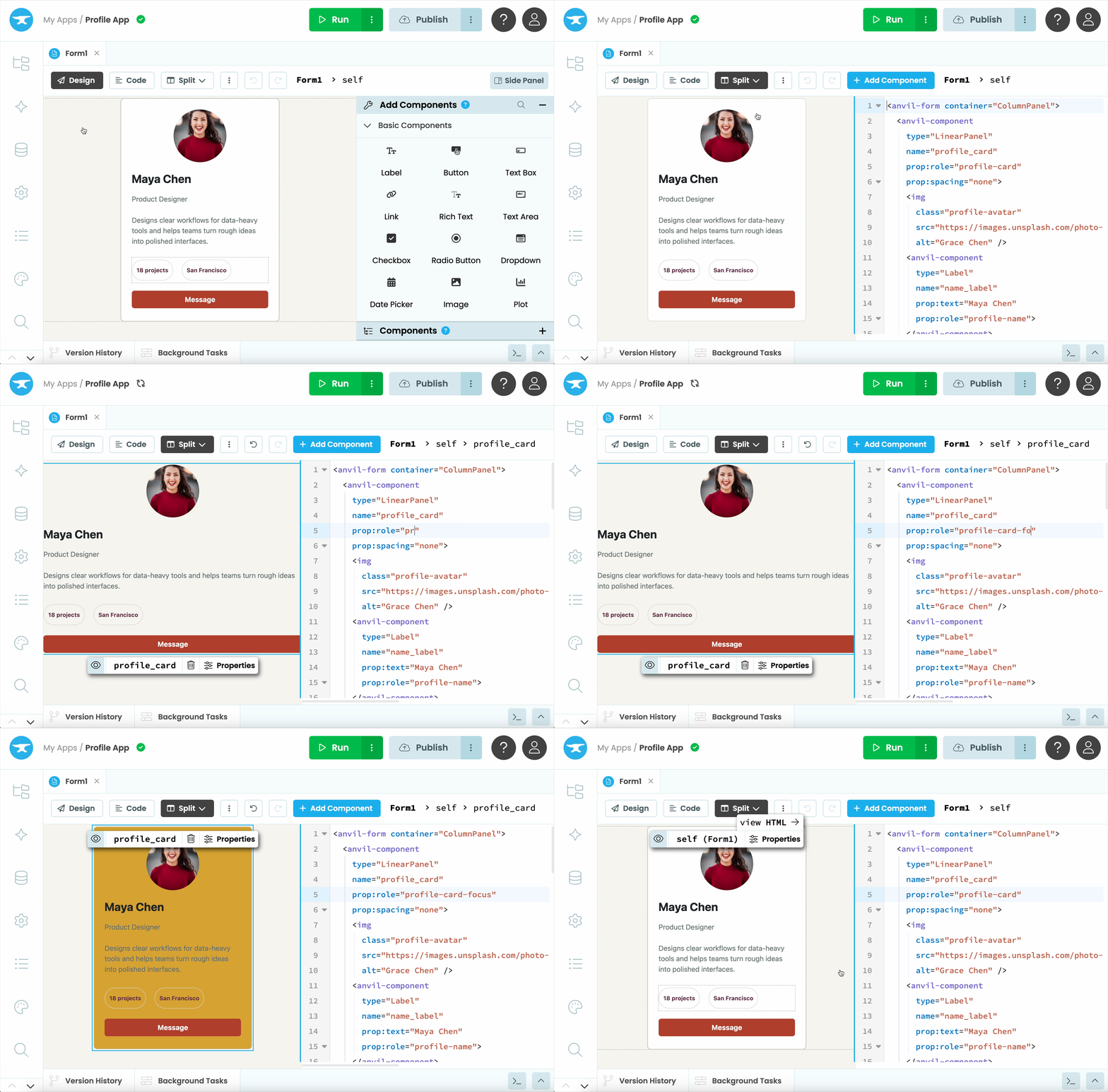
HTML view in the Form Editor.
To learn more about your Form’s HTML, see Forms as HTML.
Code view
In Code view, you can see and edit the Python class that represents your Form. This is where you write Python to control how your Form behaves and responds to user interactions. You can also create and manipulate components directly in code. See Adding UI Elements and Component Properties for more details.
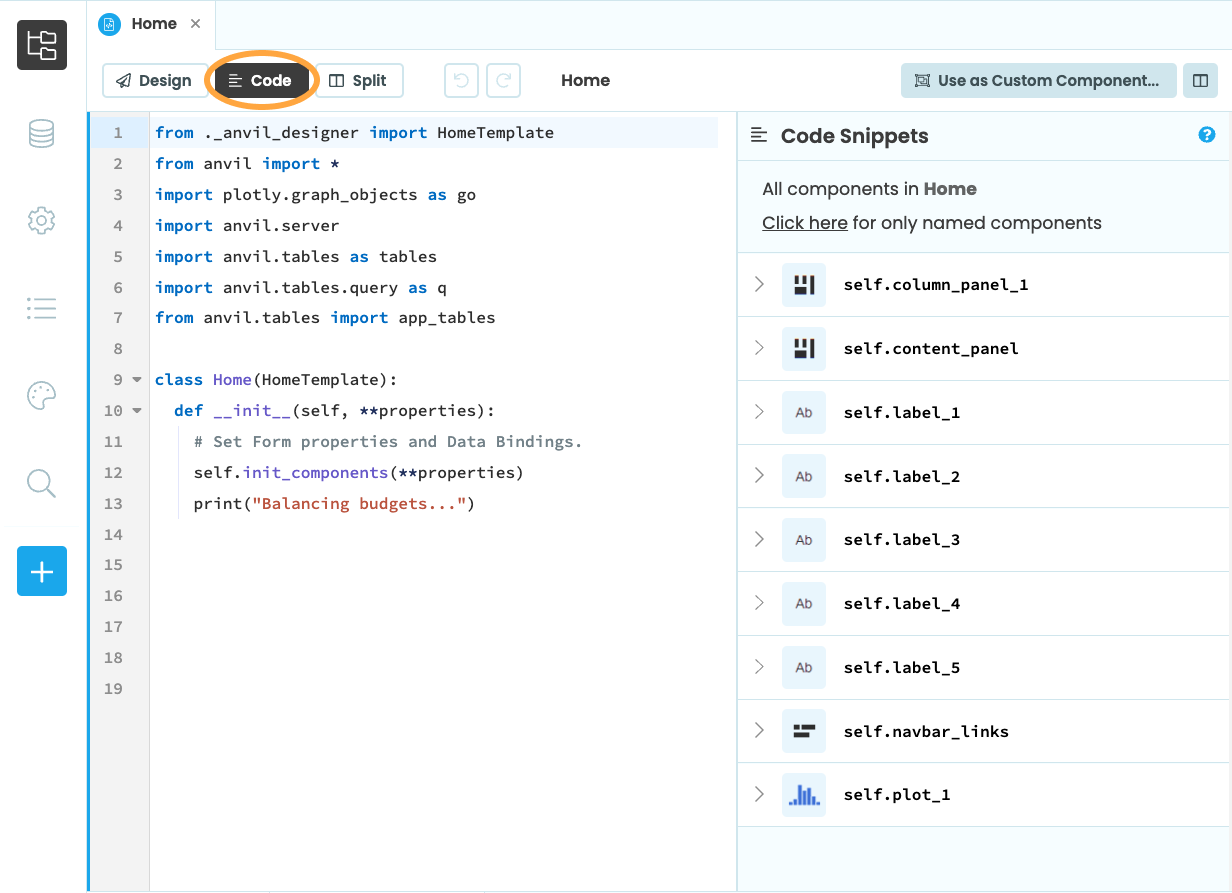
Code view of a Form.
Split view
In Split view, you can show Design, HTML and Code views together, in any combination
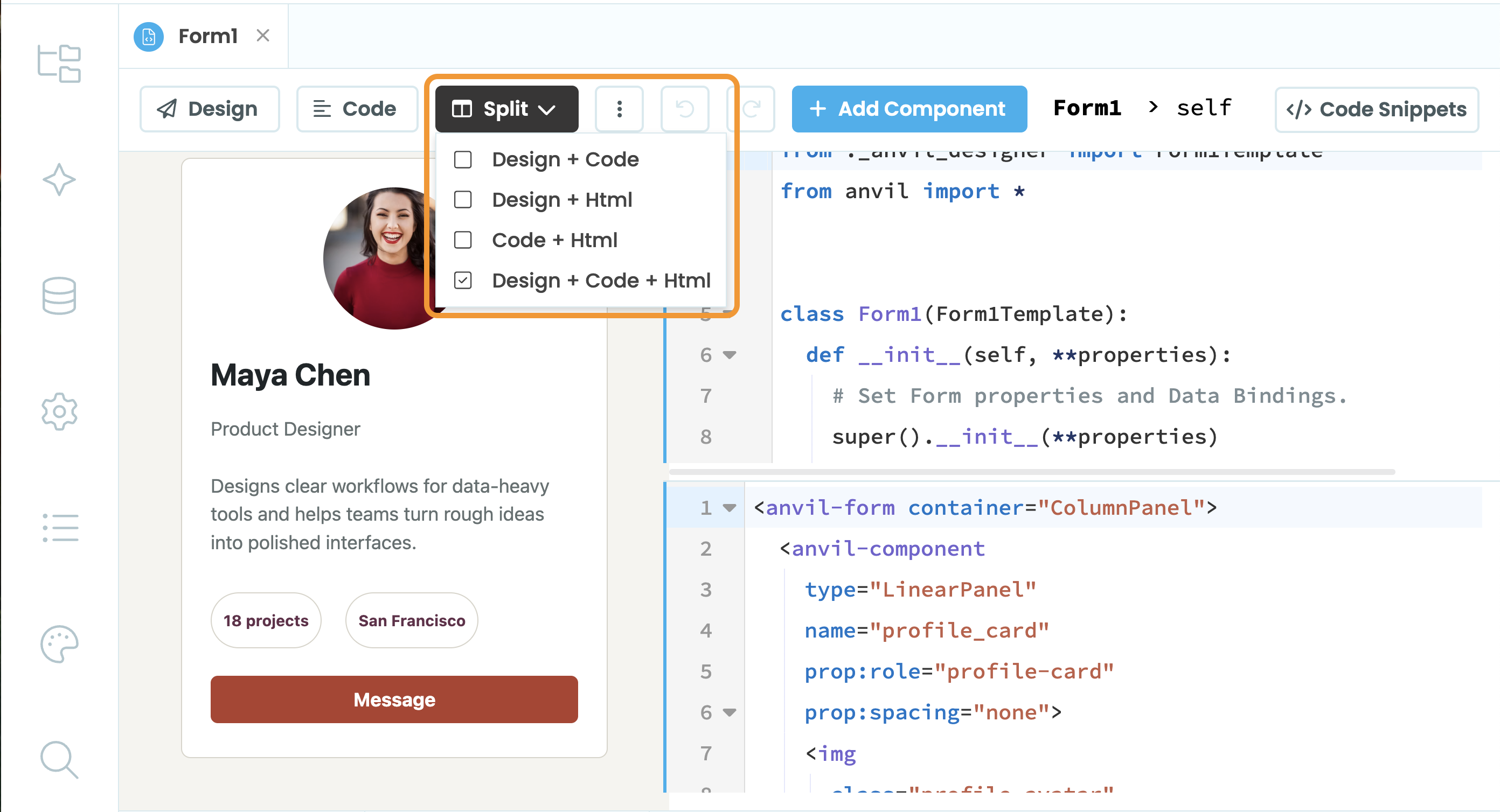
Split view of the Form Editor.
The startup Form
The Form with the  symbol next to it in the App Browser is the startup Form. This is the first page displayed when your Anvil app is opened. You can only have one startup Form at a time.
To change the startup Form, click the three dots menu next to the Form you want to make the startup Form and choose “Set as Startup Form”.
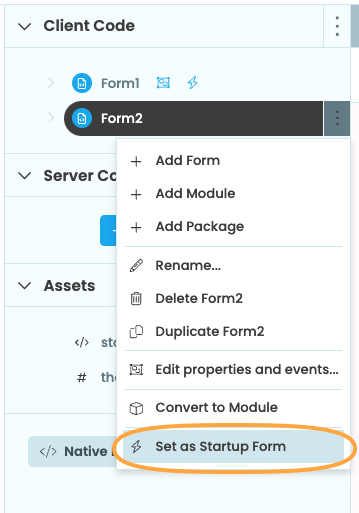
Setting Form2 to be the
startup Form from the App Browser
When the app loads, the “startup Form” is loaded and becomes the top-level Form. Since each Form is a Python class, the startup Form’s __init__ method runs automatically when the app loads, with no arguments passed in.
You can also launch your app with a Module instead of a Form, which lets you run code first, before deciding which page to open.
Do you still have questions?
Our Community Forum is full of helpful information and Anvil experts.