

Custom Python packages
To import a third-party package into your app’s Server Modules, you need to install it into that app’s server environment. Packages in Anvil are installed on a per-app basis, meaning that you can add only the necessary packages for each app.
Available Python versions
Open Settings > Python versions to choose the Python version for your app’s Server Modules. On Anvil’s hosted service, you can choose Python 3.12, 3.13 or 3.14. New apps use Python 3.14.
Changing Python version keeps your package requirements and install scripts. If you have configured packages or scripts, Anvil asks you to confirm the change so you can check compatibility with the new version. Empty configurations switch without this prompt. Anvil rebuilds the server environment using the new Python version.
Anvil Enterprise retains its Python 3.10 base images by default. Your administrator can explicitly configure newer Python versions; the hosted Python 3.14 default does not apply automatically. Enterprise installations can also offer runtimes such as Full Python 3 or Full Python 2 alongside the available images. For these runtimes, your administrator manages Python and its packages in the downlink process or container, rather than through this page. Local development can use the same runtimes with packages installed in a local Python environment. Full Python 2 appears as a choice only when it is available to your account. Existing apps keep their configured runtime.
Packages included by Anvil
The Python 3.12, 3.13 and 3.14 images start from the same small Anvil environment. It includes the tooling needed to run Server Modules and the plotly package. Plotly is included so Anvil’s plotting features work without extra setup.
Add any other third-party packages your app needs in Settings > Python versions. These images do not include the optional package bundles found in older images such as Standard and Data Science.
Migrating an older app
Apps using Python 3.10, a package-bearing base environment or a legacy Python runtime continue to run with their existing configuration. You can continue editing packages and install scripts for older base images, including deprecated and end-of-life images.
Open Settings > Python versions. The Python version dropdown shows your current version. Select Python 3.12, 3.13 or 3.14 to change it. If your old environment included bundled packages, confirm the change when prompted.
Anvil preserves your existing requirements and install scripts, and adds any missing top-level bundled packages to your requirements. Requirements you added explicitly, including version pins, take precedence. Added packages are not pinned to the versions in your old environment, so their installed versions may change.
If Anvil cannot identify the packages bundled in your old image, it warns you before switching. Your saved requirements and scripts are kept, but you will need to add any other packages your app needs. System dependencies, such as Oracle or ODBC drivers, are not copied automatically. Check your app’s requirements before switching these environments.
After the migration is saved, Anvil builds the new environment. Check the build output before running your Server Code.
Switching to an older environment
Choose Show deprecated images… at the bottom of the Python version dropdown to reveal the Deprecated group without closing the dropdown or changing your selection. This group includes end-of-life images. You can select an available image whether or not your app has used it before.
Switching back keeps your current package requirements and install scripts. It does not restore the packages or package versions you had before migration, so check that they are compatible with the older Python version. To recover an earlier package configuration, use your app’s version history.
Deprecated and end-of-life images
Deprecated images have a warning symbol in the dropdown. Images past their end-of-life date have a stronger warning. Selecting either shows a message explaining its status. Choose Hide deprecated images… to shorten the list again. The field still shows your current image when its dropdown entry is hidden.
An image with a scheduled end-of-life date remains selectable. From that date, at midnight UTC, it appears with the end-of-life warning and is hidden by default. You can still select it using Show deprecated images, including after switching away. End of life does not block running or building environments, but the image may have security vulnerabilities and package installation may stop working. We recommend switching to a supported Python version.
Unused custom environments may be cleaned up and rebuilt when needed, including environments based on end-of-life images. End of life does not change this cleanup behaviour.
Adding packages
Open Settings > Python versions, then enter a package name as it appears in PyPI in the left-hand box under Package. You can specify a version in the right-hand box, or leave it blank to use the latest version.
After adding packages to your app, you can interact with them in the Server Console.
To install packages from somewhere other than PyPI, see Advanced Options.
Build output
Once you add custom packages to the list, Anvil will install those packages to create a new server environment.
Possible errors
Anvil presents the output from pip’s install process directly. The two most common causes of build failures happen when a requested package could not be found, and when there is a conflict in dependency versions.
Package does not exist
ERROR: Could not find a version that satisfies the requirement `bad-package` (from versions: none)
ERROR: No matching distribution found for `bad-package`
Error: Build failed
This typically happens due to a typo. Double-check that the package you have requested is spelled correctly, and that the requested version (if any) is correct.
Conflicting dependencies
ERROR: Cannot install pymongo==4.1.0 and pymongo==4.1.1 because these package versions have conflicting dependencies.
ERROR: ResolutionImpossible: for help visit https://pip.pypa.io/en/latest/topics/dependency-resolution/#dealing-with-dependency-conflicts
Error: Build failed
This happens when the dependencies you have requested have incompatible requirements. For help resolving this, visit pip’s dependency conflict management page.
Checking for Vulnerabilities
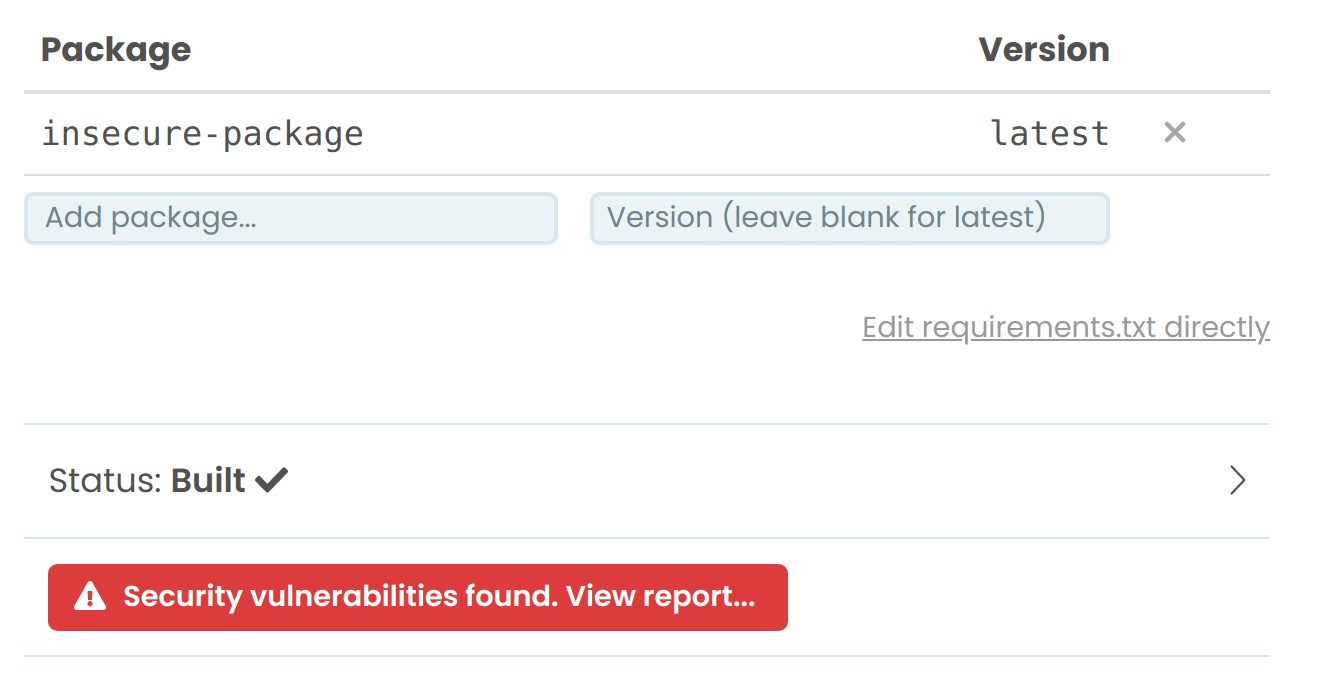
Once a server environment has been built, Anvil will use pip-audit to check the installed dependencies of that environment for vulnerabilities. The output of this can be seen below the Build Output section.
If security vulnerabilities are detected, a button will appear, linking a report of which packages are affected.
Advanced options
Editing your app’s requirements.txt directly
Anvil’s package management uses pip, so packages can be installed from PyPI, a GitHub repository, or a URL using pip’s Requirements File Format. Your app’s requirements.txt file can also be edited directly, by clicking the link at the lower left of the Package section.
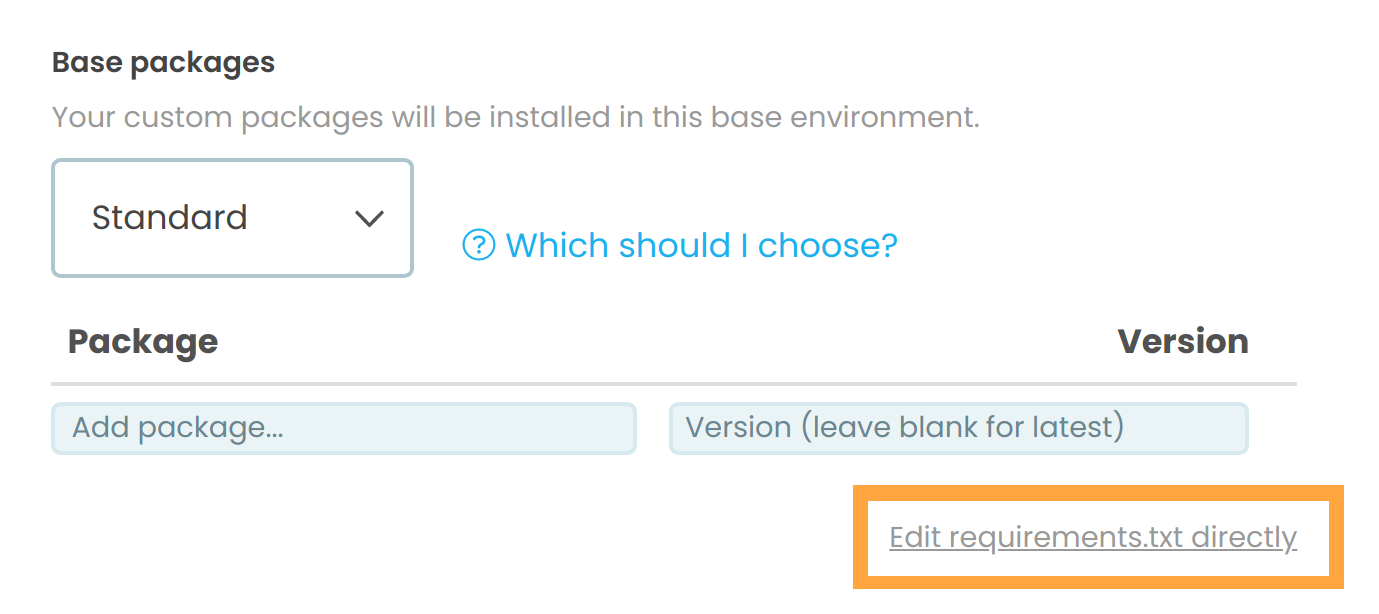
This will open up a text editor in which you can type your package list directly, just as you would into a requirements.txt file. This allows you to specify more nuance in your version dependencies, such as using the <= operator.
Running bash scripts
You can add pre-install or post-install bash scripts in the Install scripts section of Settings > Python versions.
Do you still have questions?
Our Community Forum is full of helpful information and Anvil experts.