

Quickstart: Email
Communicate to and from your app by email
Your Anvil app can send and receive emails.
Follow this quickstart to create an app that sends you an email and automatically replies to incoming messages.
Create an app
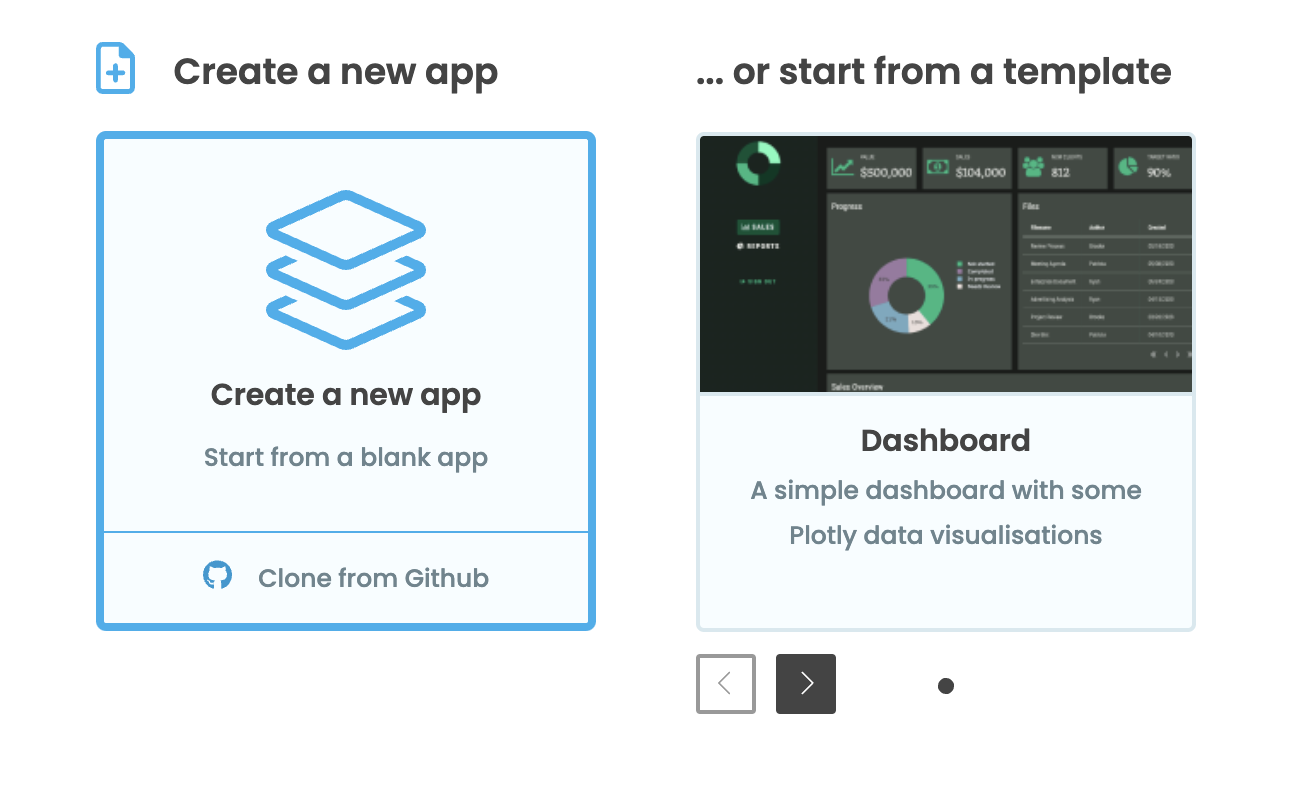
Log in to Anvil and click ‘Create a new app’. Choose the Material Design theme.
Add the Email Service
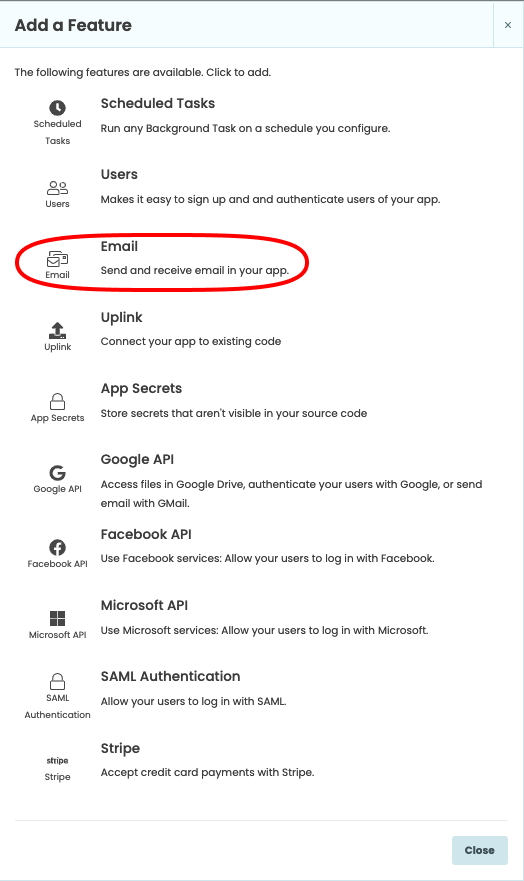
In the Sidebar Menu, click the blue plus button  . You’ll see a list of available services and integrations. Click on Email.
Add a Server Module
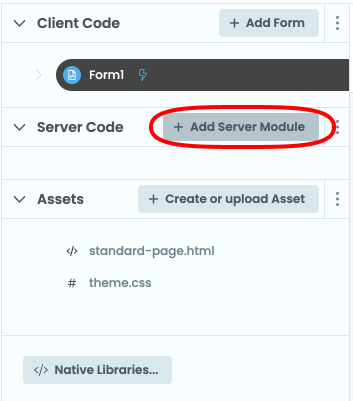
In the App Browser, click ‘+ Add Server Module’.
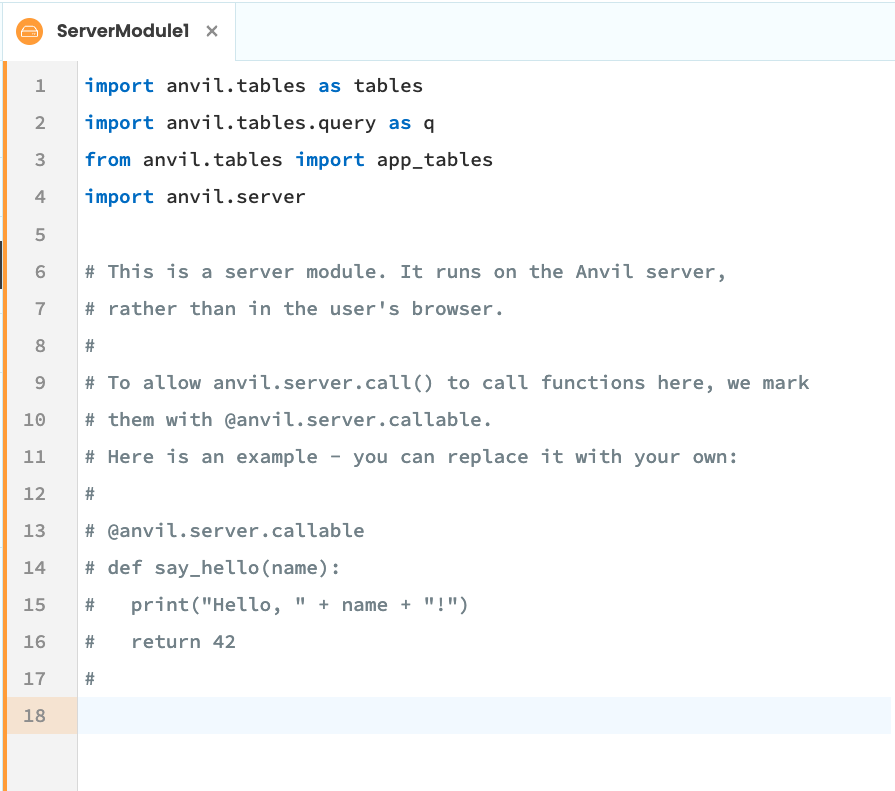
A tab will open a code editor with an orange border on the left.
Send an email from your app
Write this function into the Server Module:
@anvil.server.callable
def send_email(address):
    anvil.email.send(
      from_name="Anvil Forum",
      to=address,
      subject="Have you used the Anvil Forum?",
      html='The Anvil <a href="https://anvil.works/forum">Forum</a> is friendly and informative.',
      text="The Anvil Forum (https://anvil.works/forum) is friendly and informative.",
    )
The anvil.email.send function requires at least one of the text or html properties to be specified. The html property defines the HTML content for the email, while text is just plain-text. If both are added, the html content will be displayed unless it can’t be rendered, in which case the text content will be displayed.
Call your server function from the client
Go to the code for Form1. It looks like this:
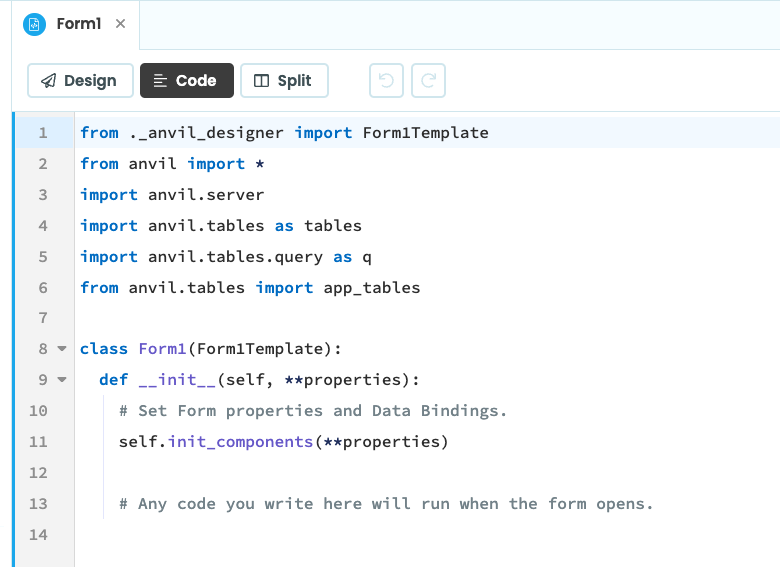
At the end of the __init__ method, write these lines (replace the <your email address> with your actual email address):
    email_address = "<your email address>"
    anvil.server.call('send_email', email_address)
This will run the function when the app starts.
Run your app
Now click the ‘Run’ button at the top of the screen.

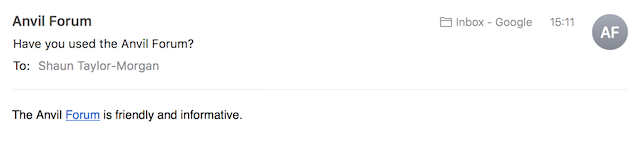
Check your email - you should receive an email from your app.
Receive emails from your app
To start receiving emails from your app, you need to publish it first. Stop your app and click the ‘Publish’ button at the top of the screen.

Back in your Server Module, write this function:
@anvil.email.handle_message
def message_handler(msg):
  to_address = msg.addressees.to_addresses[0].raw_value
  msg.reply(text = f"Your email was sent to {to_address} and received successfully.")
This function runs automatically whenever your app receives an email and sends a reply back to the sender.
Send your app an email
At the bottom of the Server Module, you will see a notice showing the email address your app can receive messages on, for example:

Your app will have a similar but unique address.
Open your favourite email client and send an email to hey-it-works@<your-app-id>.anvil.app, where <your-app-id> would be pointed-bright-basilisk in this example.
You should receive a reply containing the text:
Your email was sent to hey-it-works@<your-app-id>.anvil.app and received successfully.
(To set up a nicer email address for your app, see deployment.)
Copy the example app
Click on the button below to clone a finished version of this app into your account.
Next up
Want more depth on this subject?
Read more about Sending and receiving email in Anvil
Want another quickstart?
Every quickstart is on the Quickstarts page.
Do you still have questions?
Our Community Forum is full of helpful information and Anvil experts.