 By
By Chapter 1:
Import the dataset and packages
Step 1: Create the dataset
The first thing we need to do is download our dataset, which you can find here: Uber Pickups in New York City | Kaggle.
In this tutorial, I’m using the uber-raw-data-sep14.csv dataset, which includes time and location data of Uber pickups in New York City during September 2014.
Step 2: Create an app and add the data
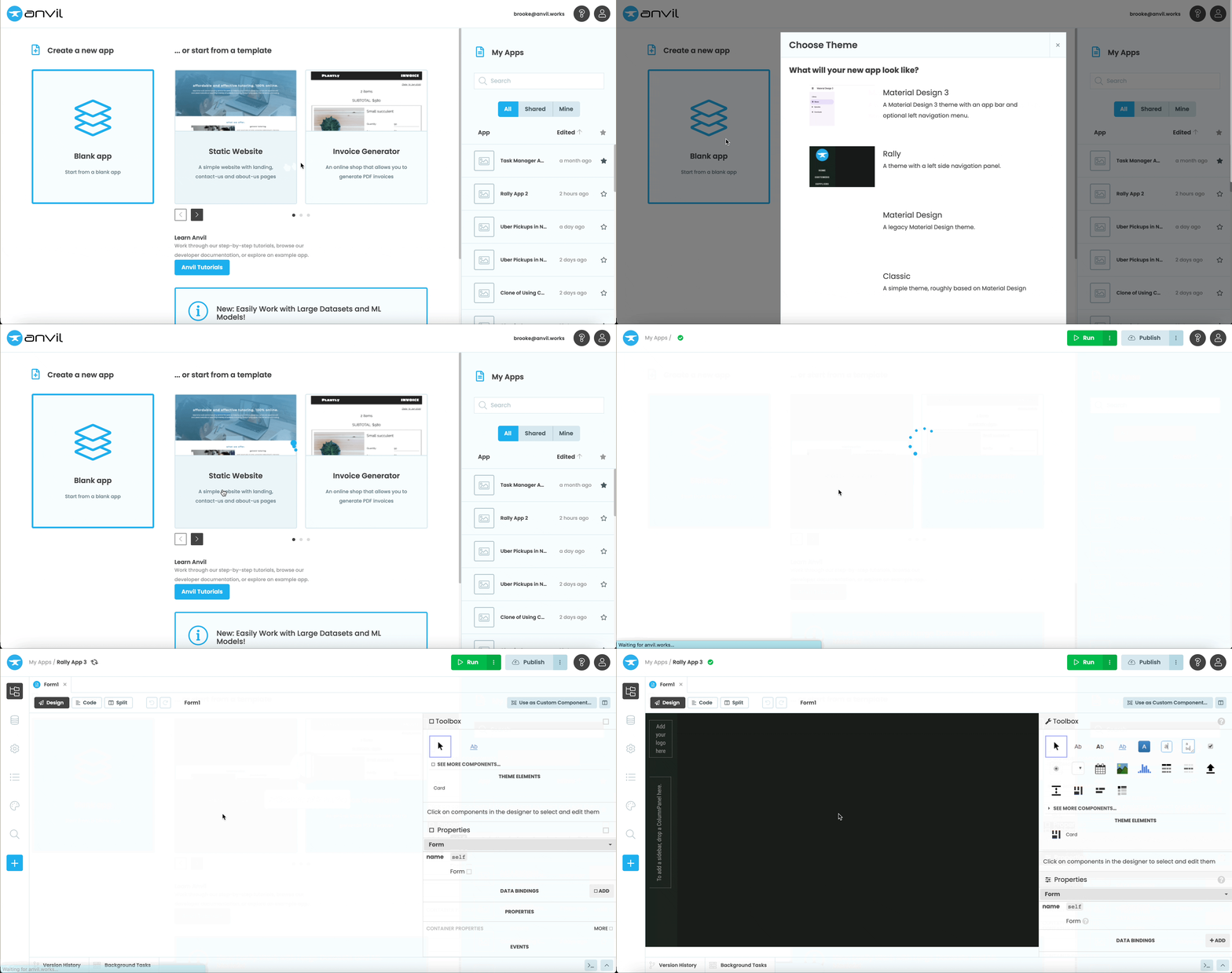
Once we have the dataset downloaded, we can create a new Anvil app. Go to Anvil, create a new blank app and choose the Rally theme. In the top left, you’ll see the name of your app. Click on this and change it to “Uber Pickups in NYC”.
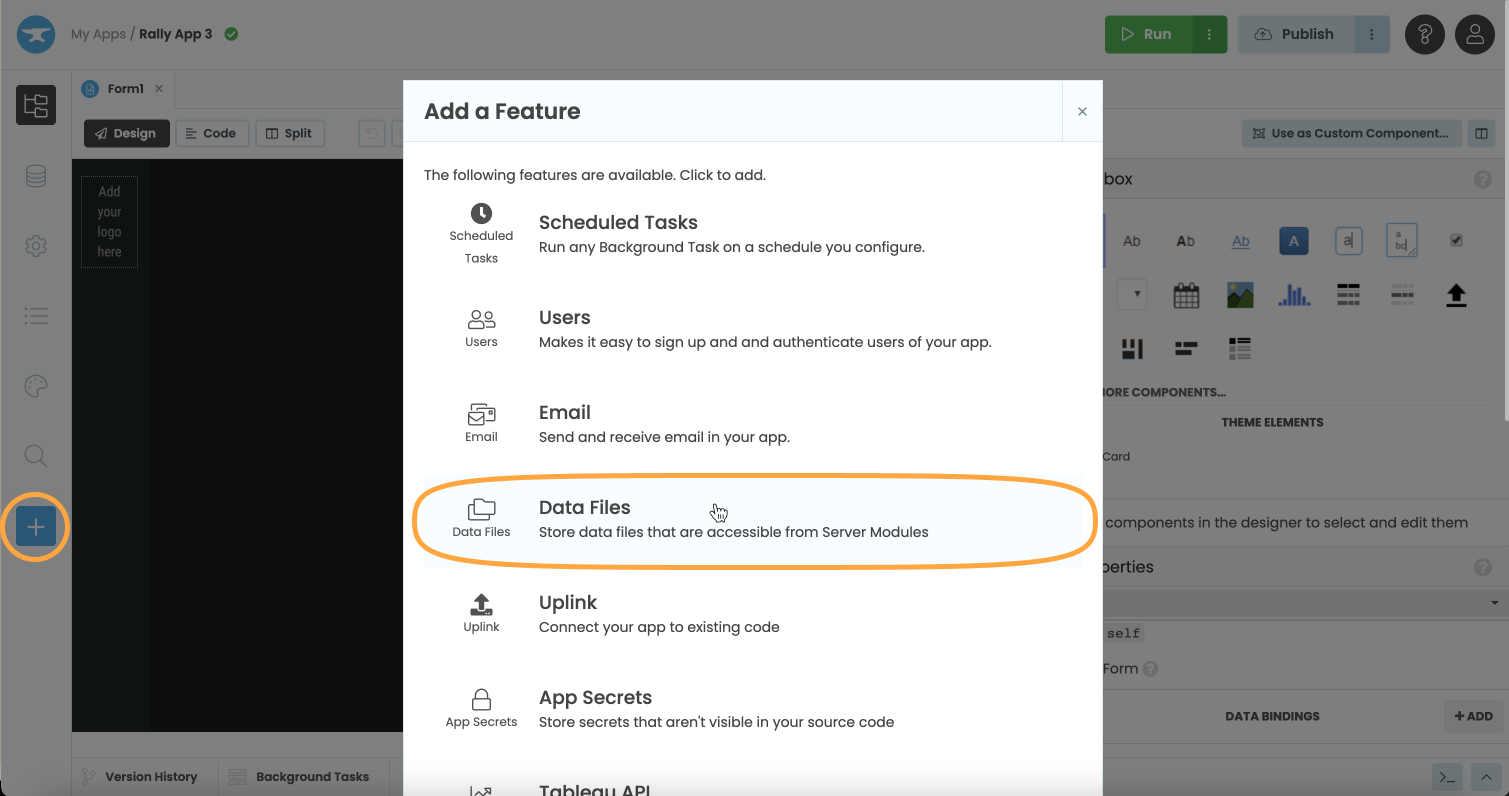
Next, add the Data Files service by choosing the blue plus button in the Sidebar Menu then selecting Data Files.
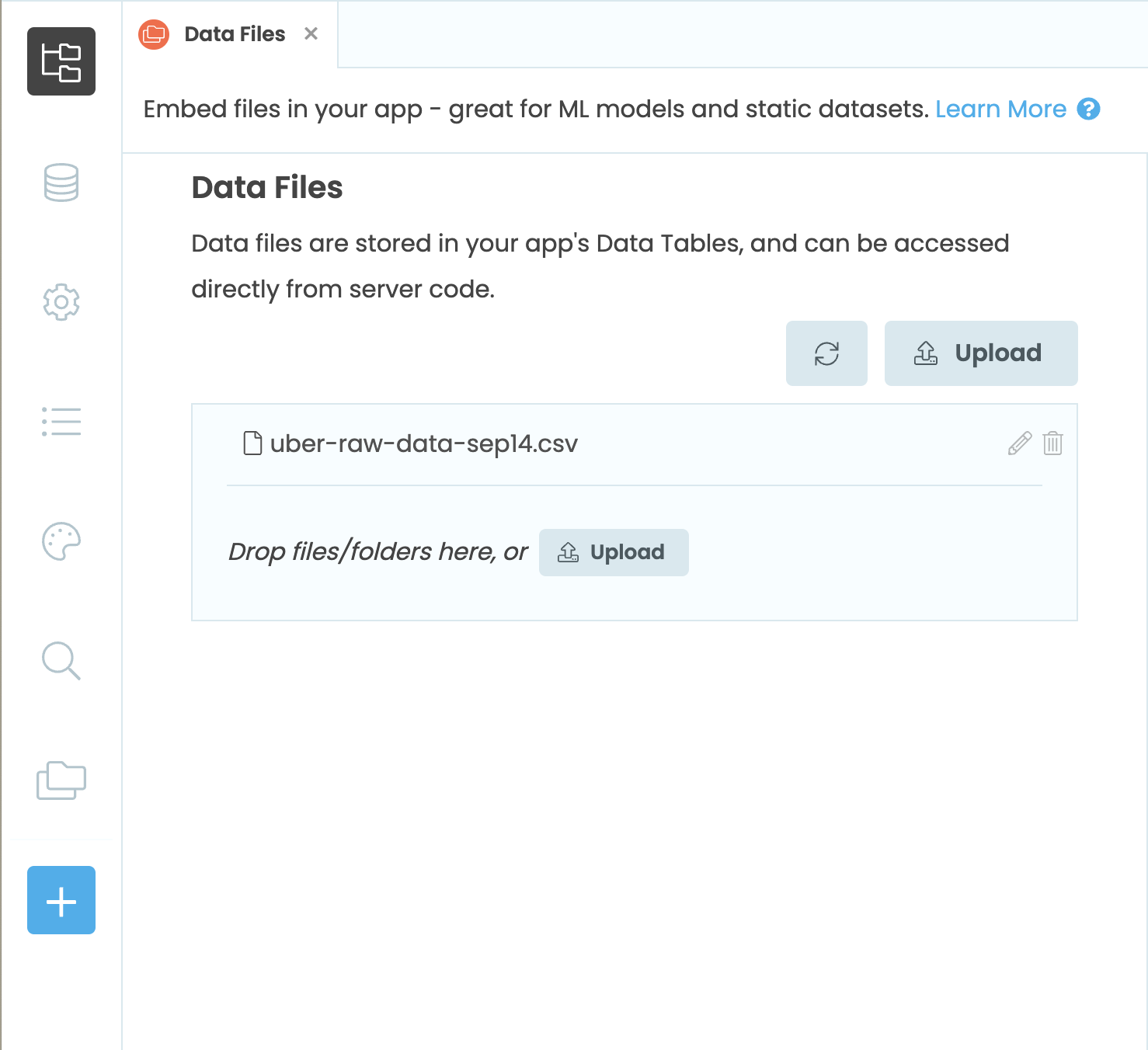
Now we can upload our dataset to our Anvil app. Click the Upload button and select the dataset we just downloaded. You can also drag and drop the file in order to add it to the app. When the upload is complete, you will see the file listed.
Step 3: Configure the Python environment
We’ll use pandas, numpy and Plotly to build our app. Choose Settings > Python versions and select a supported Python 3 version.
Add pandas, numpy and plotly to your packages. Use Edit requirements.txt directly to set the Plotly requirement to plotly>=5.24.0. Wait for the environment to finish building before running the app.
Now that we’ve imported our data and Python packages, we can build the UI for our app.