 By
By Chapter 5:
Plot the map data
Now let’s use the Lat and Lon columns of our CSV file to plot the pickup locations on a map. We’ll use Plotly’s Scattermap plot to draw a marker for each pickup.
Step 1: Return the map data
Back in our Anvil app, we’ll add another function to the Server Module which will generate the map data.
Create a client-callable function called get_map_data that takes one argument called hour. Let’s set it so that it defaults to 0 if no argument is given. We’ll filter the dataframe based on the hour passed into the function and plot the data onto a map.
@anvil.server.callable
def get_map_data(hour=0):
  filtered_data = DATA[DATA['Date/Time'].dt.hour == hour]
  map_data = go.Scattermap(lat=filtered_data['Lat'], lon=filtered_data['Lon'], mode='markers')
return map_dataStep 2: Add data to `self.mapbox_map`
We can now switch back to Form1 and add the map data to the self.mapbox_map plot we added in Step 2. We’ll use the carto-positron style to display a light street map and centre it on New York City. The __init__ method of the Form should look something like this:
class Form1(Form1Template):

  def __init__(self, **properties):
    # Set Form properties and Data Bindings.
    super().__init__(**properties)
    Plot.templates.default = "rally"

    #create the histogram of uber pickups per hour
    self.bar_chart.data = go.Bar(y=anvil.server.call('create_histogram'))

    #create the map of pickup locations
    self.mapbox_map.data = anvil.server.call('get_map_data')
    #set the map style and centre it on NYC
    self.mapbox_map.layout.map = dict(style="carto-positron", center=dict(lat=40.7128, lon=-74.0060), zoom=10)
    #remove padding from map
    self.mapbox_map.layout.margin = dict(t=0, b=0, l=0, r=0)
Run the app and both plots should now be populated with data
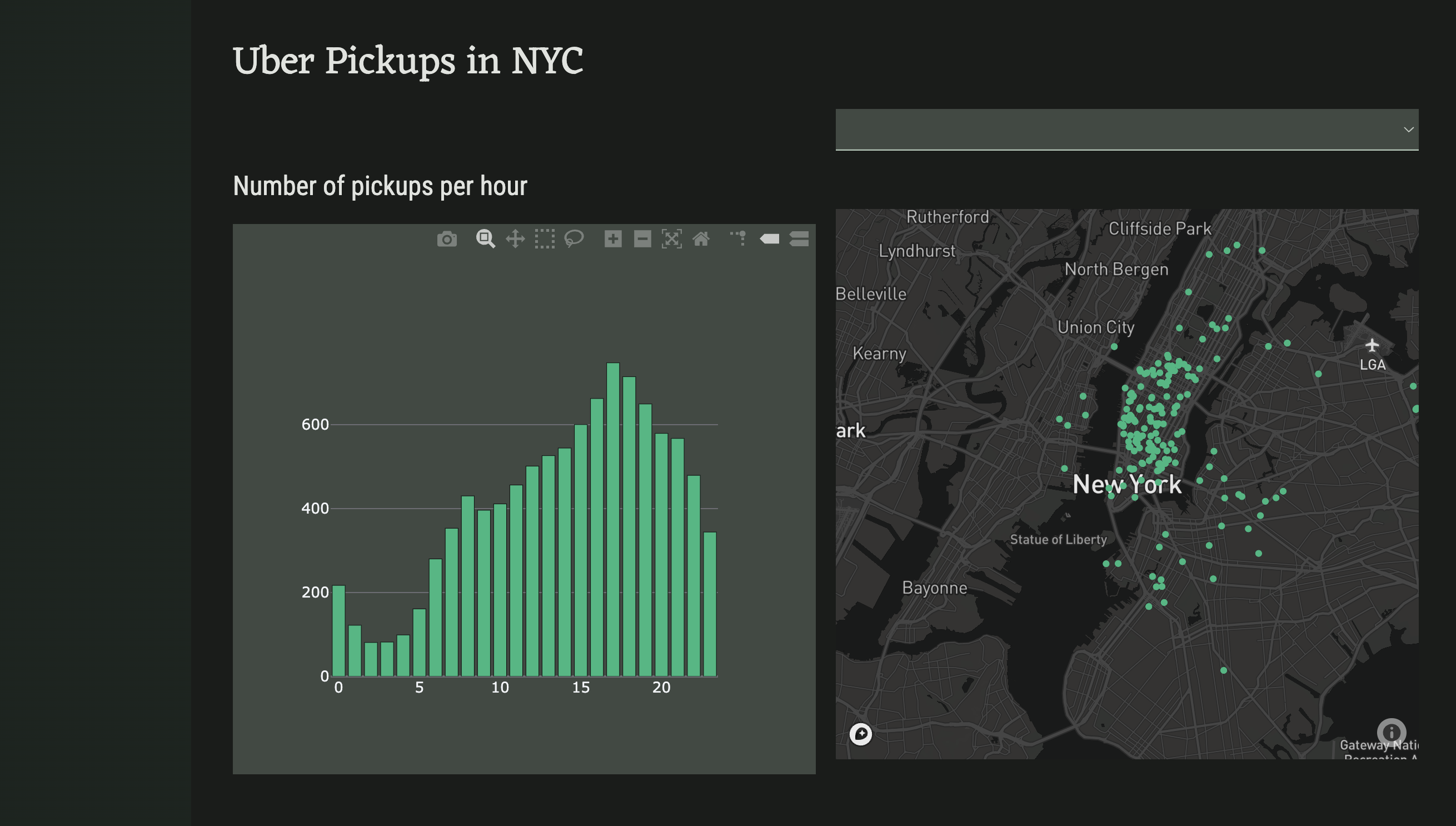
We now have a static dashboard to display our data. Let’s now modify our code so that the map updates according to user input.