Anvil CLI - Agent File

Here is something little and anyone can do it, but a reminder to save on context. I made an agent.md file for my agent to give a quick shortcut to understanding the cli and what to do. it lives in my .anvil-cli/ folder.

Anvil CLI reference

Binary: ~/.anvil-cli/npm-global/bin/anvil (add to PATH, or invoke by full path).

Commands

watch | sync [path]

Watch for local file changes and sync them to the Anvil editor. This is the main
command for active development — run it in the background while editing.

  • -A, --appid <APP_ID> — specify app ID directly (otherwise auto-detected from git remote)
  • -f, --first — auto-select first detected app ID without confirmation
  • -s, --staged-only — only sync staged changes (git add first)
  • --no-dependency-watch — don’t watch/refresh .anvil/deps
  • -a, --auto — auto mode: restart on branch changes, sync when behind
  • -O, --open — open watched path in preferred editor/app
  • -u, --url <ANVIL_URL> — Anvil server URL (e.g. anvil.works, localhost)
  • -U, --user <USERNAME> — which account to use

checkout | co [input] [directory]

Check out an Anvil app locally from editor URL, git URL, app ID, or interactive picker.

  • -O, --open — open destination after checkout
  • -b, --branch <BRANCH> — checkout specific branch
  • --depth <N> — shallow clone
  • --single-branch
  • --origin <NAME> — custom remote name
  • --quiet / --verbose
  • -u, --url / -U, --user
  • -f, --force — override safety checks on destination path
  • -Q, --query <QUERY> — preseed interactive picker search

Examples:

anvil checkout http://localhost:3000/build/apps/APPID/code/assets/theme.css
anvil checkout https://anvil.works/git/APPID.git
anvil checkout APPID --url anvil.works
anvil checkout APPID --branch master --depth 1 --single-branch
anvil checkout APPID -O
anvil checkout APPID my-local-folder --force
anvil checkout                    # interactive search/select
anvil checkout -Q "dashboard"

git-auth

Diagnose Anvil Git authentication. Subcommand: doctor — diagnose why plain
git commands can’t authenticate to Anvil.

login | l [anvil-server-url]

OAuth login. -u, --url <ANVIL_URL>.

anvil login
anvil login anvil.works
anvil login --url localhost

logout | lo [anvil-server-url]

-u, --url, -U, --user. Logs out of all accounts if none specified (or prompts).

config | c

Manage CLI configuration. Subcommands: get <key>, set <key> <value>,
delete|unset <key>, list, reset.

convert-template

Convert an Anvil form template YAML file to HTML template format.
-o, --output <path>, -f, --force, --keep-source.

deps

Manage app dependencies. Subcommands: fetch [options] (into .anvil/deps/),
status (show cached), clear (clear cache).

tables

Manage table mappings. Subcommands: fetch (into .anvil/table-mappings.json),
status, clear.

validate

Validate Anvil app files: anvil.yaml, client_code/**/*.yaml,
client_code/**/*.html, client_code/**/*.py, server_code/**/*.py.

update | u

Update the anvil CLI itself to the latest version.

configure

Guided interactive setup for configuration and login.

version

Show CLI version information.

Global options (all commands)

  • --json — NDJSON output, useful for scripting/LLM consumption
  • -V, --verbose — detailed output
  • -h, --help — per-command help

Notes for future sessions

  • anvil watch is long-running; launch it in the background and let file edits
    sync automatically rather than re-running it per change.
  • Confirm with the user before starting anvil watch/sync since it pushes
    local changes live to the connected Anvil app.

3 Likes

Usage tip:
To get the above text in Markdown format,

  1. Highlight (select) the area you want to copy.
  2. The Forum will pop up a short menu:
    image
  3. From this menu, choose “Copy Quote”.

You now have the selected text, in Markdown format, on your clipboard, and you can paste it whereever you want.

2 Likes

I thought the editor did a fine enough job, but it does look cleaner! thanks!

I had approached the same problem from the other direction.

I use a .cmd launcher for each Anvil app. Running it:

  • Opens the project folder in Codex
  • Opens it in PyCharm
  • Starts anvil watch in a wt.exe tab, making sure not to start it twice if I run the same launcher again
  • Opens the Anvil IDE in the default browser
  • Updates the launcher’s timestamp, so I can sort the file manager by date and effectively use it as an MRU launcher list

What I like about your approach is that you push this one step further: instead of explicitly starting anvil watch, you give the agent enough information to take care of it.

I’m also using PyCharm and the Anvil IDE less and less, so for quick sessions this could make the launcher unnecessary altogether: just open the project in Codex and let the agent start/manage anvil watch when needed.

One thing I would probably add to your agent file is a warning not to touch Git while anvil-cli is managing the repository. I have this in mine, and it prevents the agent from churning through Git, trying to understand the diff, and repeatedly checking what it has changed during the current session:

In an Anvil repository managed by a running anvil-cli, never touch Git. Do not run any Git command or use Git tooling, including read-only operations such as status, diff, or log. The Anvil CLI owns the repository state and may rewrite it in real time; inspect files directly, make only the requested file edits, and leave staging, commits, branches, history, and synchronization entirely to the Anvil CLI.

For reference, this is one of my launchers:

:: open project in Codex
start "" "codex://new?path=C:\workspace\Anvil\CncMacro"

:: open project in PyCharm
start "" "C:\Program Files\JetBrains\PyCharm 2024.1.4\bin\pycharm64.exe" "C:\workspace\Anvil\CncMacro"

:: start Anvil file sync/watch (singleton WT tab)
powershell -NoProfile -ExecutionPolicy Bypass -File "%~dp0..\_ensure_wt_anvil_watch_tab.ps1" -WatchTitle "CncMacro Anvil Watch" -WatchMarker "ANVIL_WATCH__CNCMACRO" -WatchDir "C:\workspace\Anvil\CncMacro"

:: open Anvil IDE in the default browser
start "" "https://anvil.works/build/apps/<app_id>"

:: update launcher timestamp
@powershell -NoProfile -Command "(Get-Item '%~f0').LastWriteTime = Get-Date"
2 Likes

Thank you! I will update my file.

I narrowed down on this approach because I find myself using my terminal more and more. ZED had been my favorite IDE, but honestly find myself hopping between projects and managing different sessions much easier via the CLI. I do use my IDEs for review , but like you said

Quick sessions and small bugs that are reviewable via the Command line are by in large most of my work. It has shifted my workflow to micro-task my updates so they are quickly reviewable.

That’s actually what keeps PyCharm in my workflow these days. I mostly use it for reviewing file history, which is especially useful with Anvil apps, where git diff isn’t very useful while anvil watch is doing its thing.

PyCharm gives me two different histories: Git history, which shows what happened to a file according to Git, and Local History, which tracks what actually changed in the local filesystem independently of Git, including changes made outside PyCharm.

Alt+Shift+C opens Recent Changes, and I can quickly see what changed a couple of minutes ago, 15 minutes ago, etc. So after an LLM turn I can see which files it touched even if the changes were never committed, or if anvil watch has already amended them into its working commit together with a bunch of other changes.

That’s probably the main reason I still open PyCharm.

I thought Zed and VS Code didn’t have anything similar, but I checked: VS Code actually does have built-in Local History. Zed has File History now, but as far as I can tell that’s Git history, not local filesystem history.

1 Like

Wow this is a feature I was not aware of in IDEs. I’ll have to do more digging, but I immediately understand its utility.

TY!

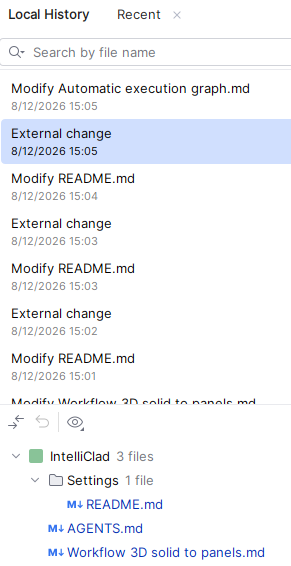
Here is an example of how Local History works with what I’m doing now.

I’m using Codex to define a few specs documents, and every turn does multiple changes to the files.

Here you can see that at 3:05 3 files where changed. If I double click on any of them, I see the diff.

1 Like