

Changing the Look and Feel of the Editor
You can update the look and feel of the Anvil Editor from the My Account tab in the top right corner of the page.

Click the My Account button to access the Look & Feel settings
Light and Dark Themes
The Theme dropdown lets you switch the Editor into Dark theme or back to Light theme. You can also have the Editor use whichever theme your system is currently using by selecting the “System” option.
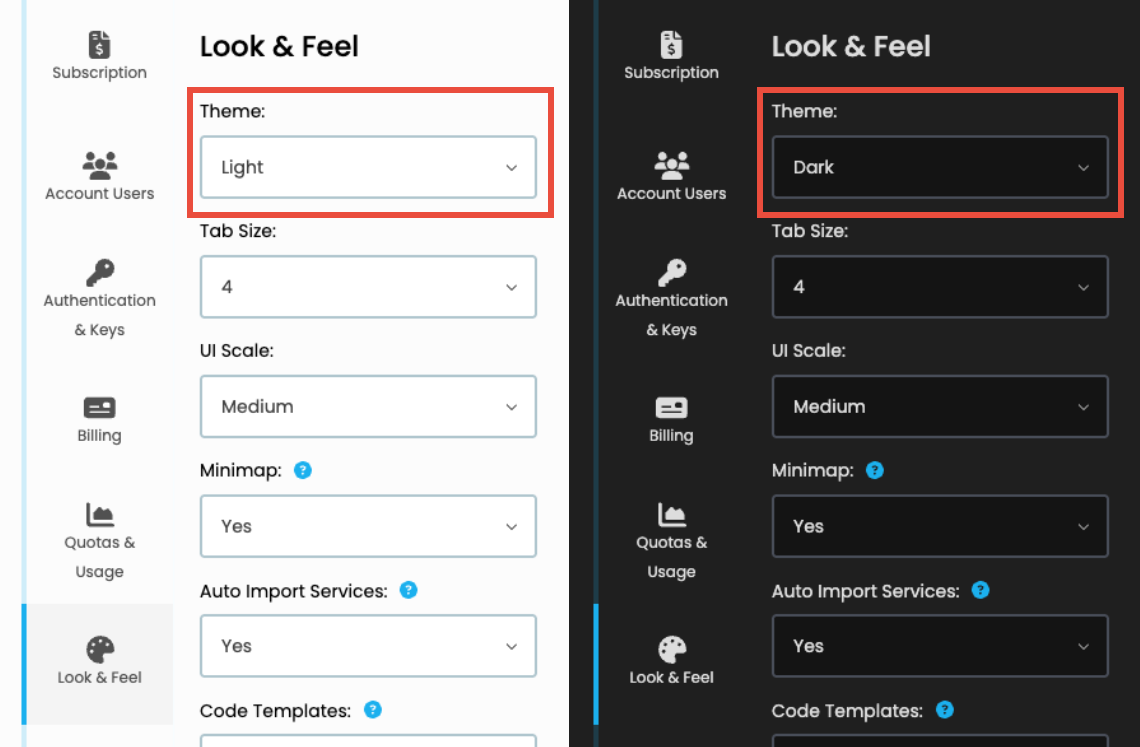
The default option is System.
Tab Size:
The Tab Size dropdown lets you adjust the size, in amount of spaces, of tab characters in your Anvil scripts. Code that is automatically added by Anvil will use the tab size and indentation style specified by this setting.
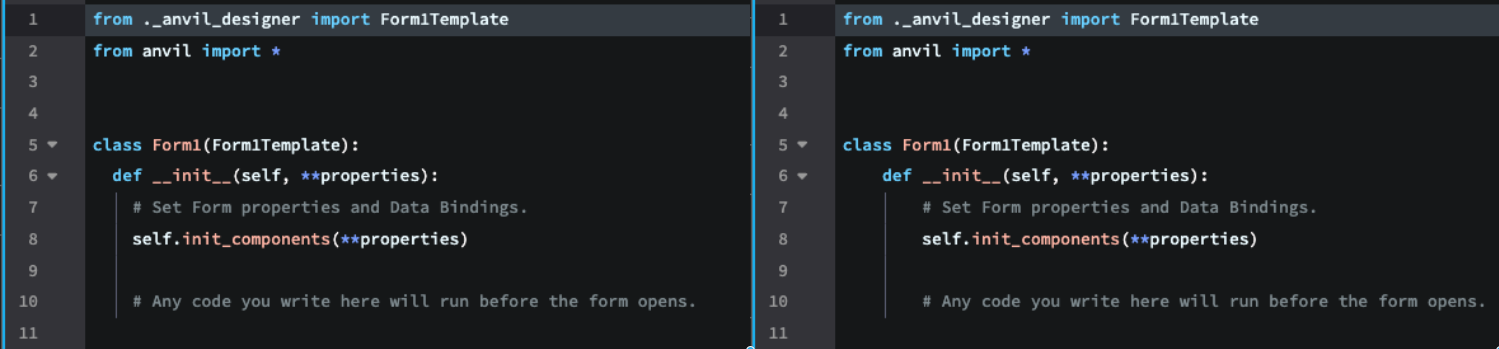
Tab size of 2 spaces on the left, and 4 spaces on the right.
The default setting for tab size in Anvil is 2 spaces.
UI Scale
The UI Scale dropdown allows you to adjust the zoom of the Editor UI, without affecting the app you’re editing.
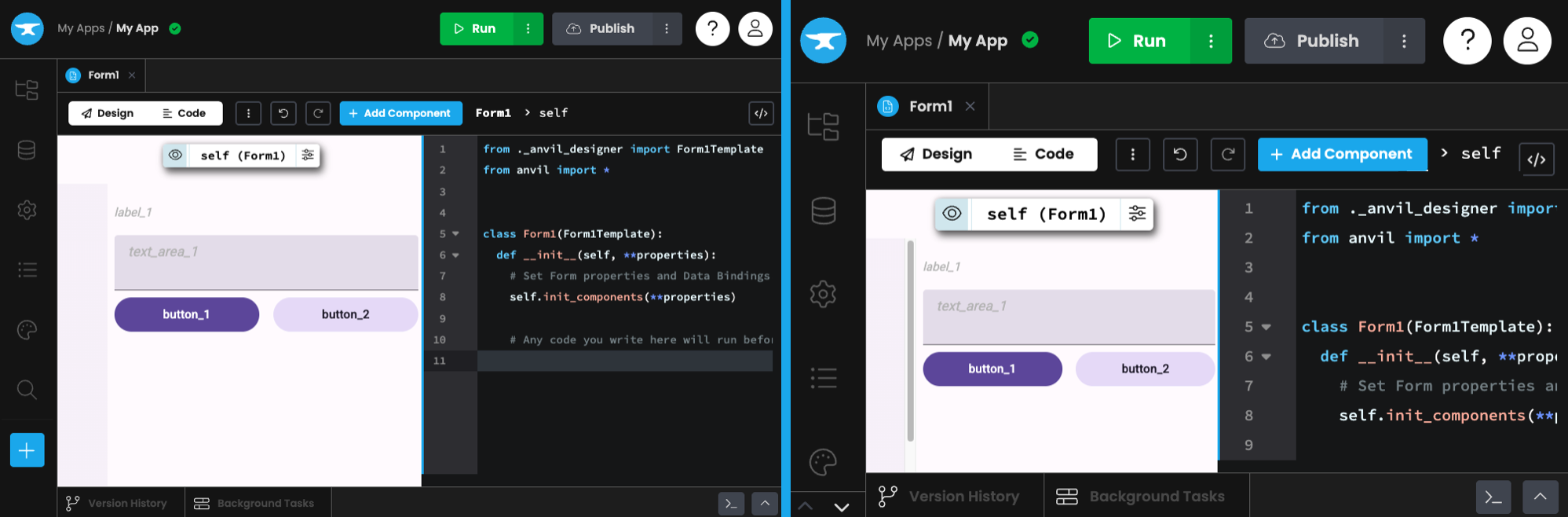
Medium UI scale on the left, Huge UI scale on the right. The zoom of the Design tab is unaffected.
The default is medium.
Minimap
This setting lets you enable of disable the Minimap in the Editor, which displays a condensed overview of your code on the right side of the editor for easier navigation.
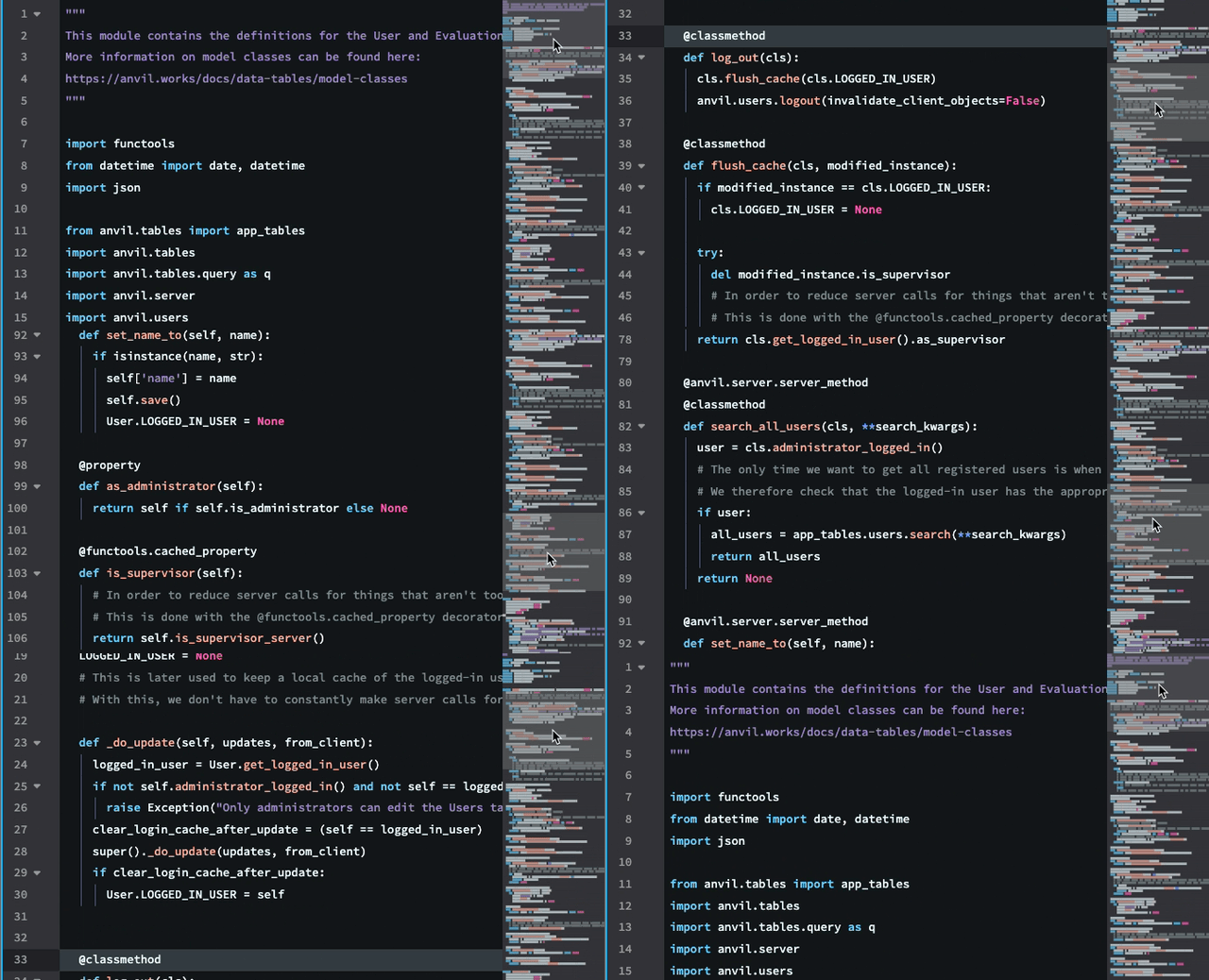
The minimap makes navigating large scripts much easier.
The minimap is, by default, enabled.
Auto Import Services
The Auto Import Services option will default to “Yes”. This means that when you add a service that requires package imports (such as the Email Service or Google Service), the relevant import statements will automatically be added to the top of your server modules.
You can toggle this option to “No” so that the import statements are not added automatically. If added, the import statements will still be removed when the service is removed.
Code Templates
The Code Templates dropdown controls how much boilerplate newly created forms start with. Standard templates include helpful comments and starred imports, while minimal templates exclude them.
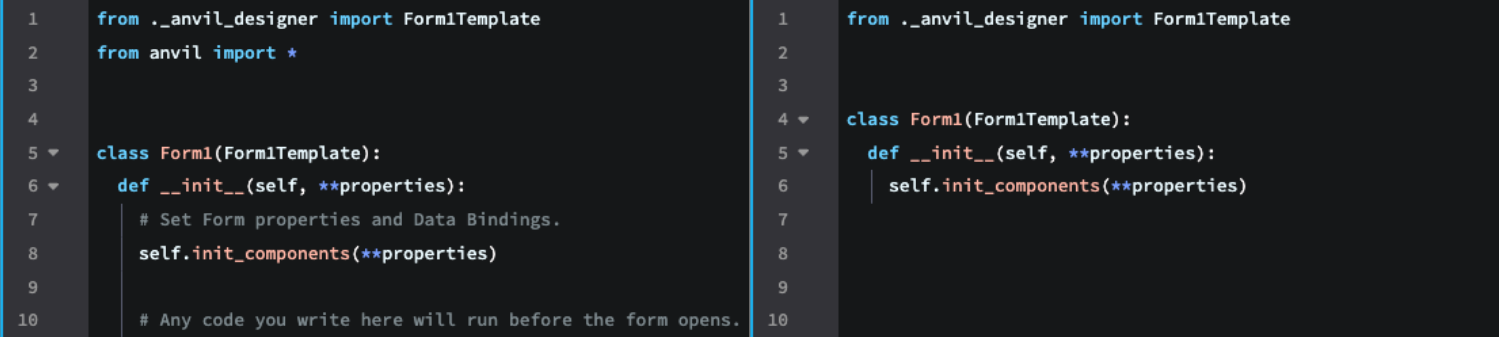
The Standard templates on the left, and Minimal templates on the right.
We recommend new Anvil developers stick with Standard templates, which is the default option.
Format on Save
This setting enables or disables automatic formatting of your code when saving through the Ctrl/Cmd + S keyboard shortcut. By default, it is enabled.
ESLint JavaScript
This setting enables or disables the ESLint linter when editing JavaScript files. By default, it is enabled.
Key Bindings
The Key Bindings dropdown lets you change Anvil’s default key bindings to Vim or Emacs key bindings.
Do you still have questions?
Our Community Forum is full of helpful information and Anvil experts.