

Connecting Your Account
To use AI agents in Anvil, you need to connect your account to an AI provider. When you open the agent chat window for the first time, you’ll be prompted to choose a provider.
Anvil supports the following providers:
- ChatGPT/Codex
- Claude
- Custom Model Provider (Enterprise only)
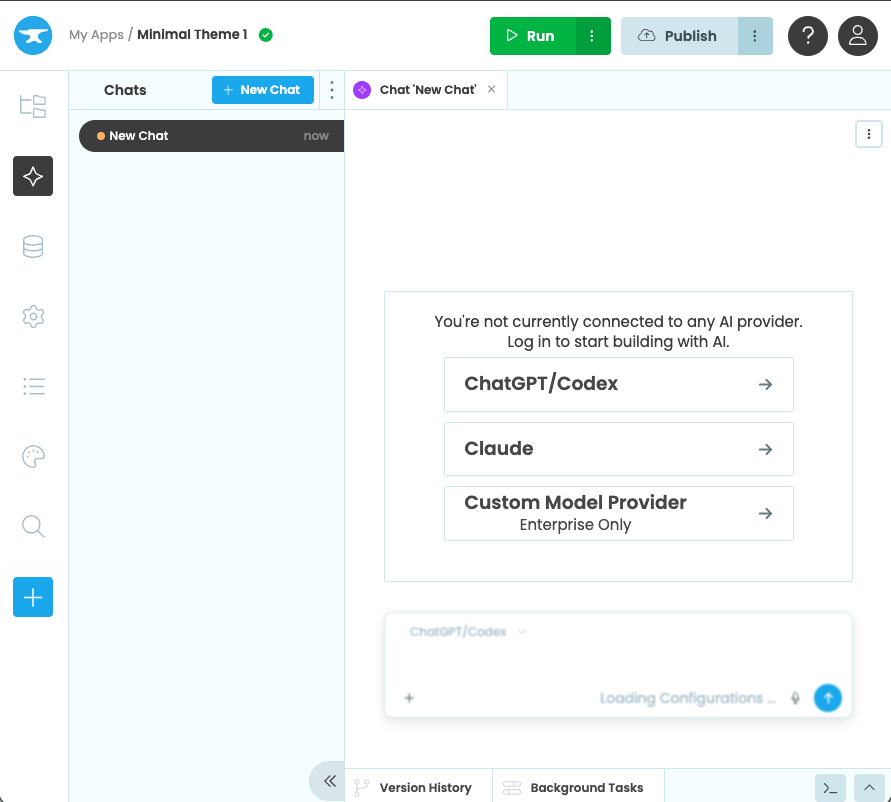
Choose an AI provider to get started
ChatGPT/Codex
Click ChatGPT/Codex in the agent chat window.
There are two ways to connect your ChatGPT/Codex account:
Log in with ChatGPT
A one-time login code will be displayed in the chat window, and a link to sign in at https://auth.openai.com/codex/device.
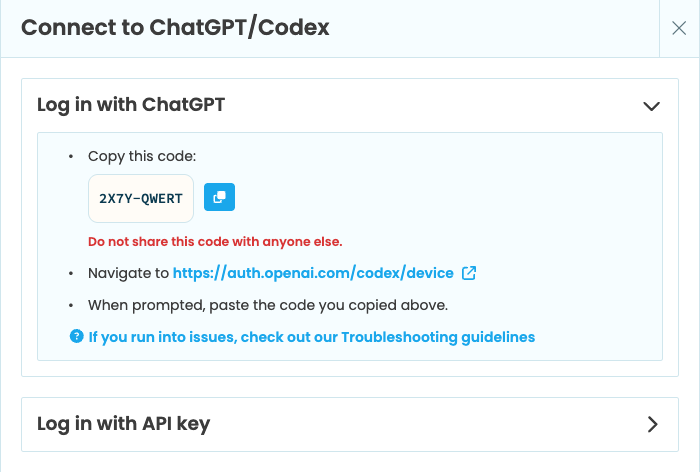
Log in with ChatGPT
Copy the code and open the link. Log in or choose an account to open the Sign in to Codex with ChatGPT confirmation window. When prompted, paste the code and click Continue.
Once connected, return to the Anvil Editor and click Continue to conversation.
Troubleshooting
- Make sure you are already logged into your OpenAI account before opening the link. If you are not logged in, the option to enter the code may not appear.
- If you still do not see the option to enter the code, go to ChatGPT Settings and under Security and login, toggle on “Enable device code authorisation for Codex”. Then, reopen the link from Anvil.
Log in with an API key
Generate an API key from the OpenAI dashboard. In the dialog that appears, paste your API key and click Log in.
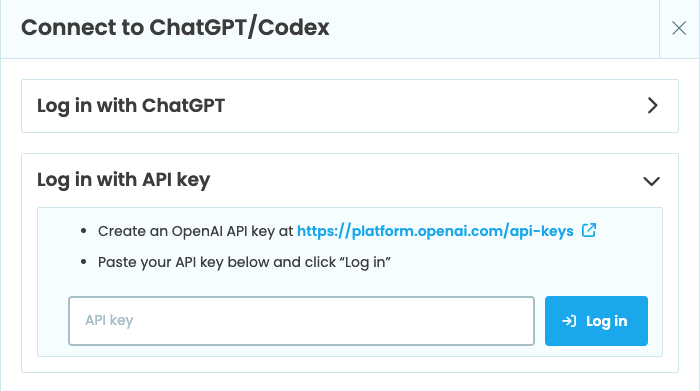
Log in with an API key
Claude
Click Claude in the agent chat window.
There are two ways to connect your Claude account:
Anthropic API key
Generate an API key from the Anthropic Console. In the dialog that appears, paste your API key and click Log in.
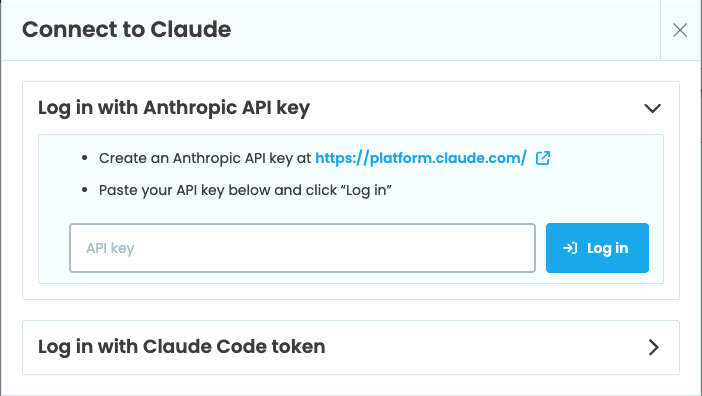
Log in with an Anthropic API key
Claude Code token
With Claude Code installed on your machine, run the following command in your terminal:
claude setup-token
Copy the generated OAuth token, paste it into the dialog, and click Log in.
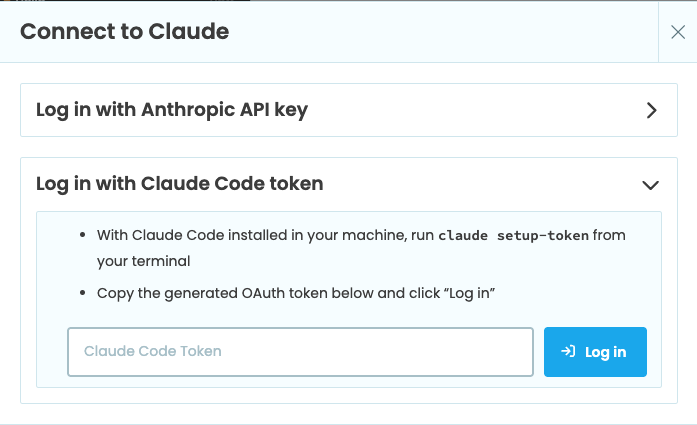
Log in with a Claude Code token
Custom Model Provider
Custom Model Provider is available on Anvil Enterprise. Click Custom Model Provider in the agent chat window to get in touch and discuss your requirements.
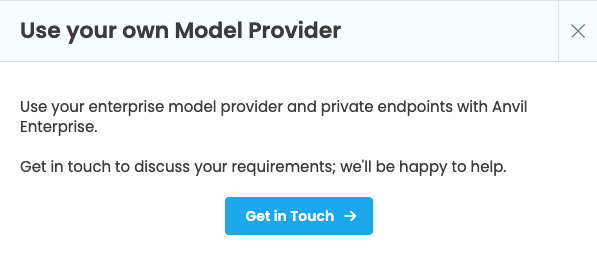
Custom Model Provider is available on Anvil Enterprise
Disconnecting your AI account
To disconnect an AI provider, open your account settings by clicking Manage agent authentication from the menu () at the top of the Chats panel or from the menu next to the Move button in the open conversation. Under AI Connections, click Remove connection next to the provider you want to disconnect.
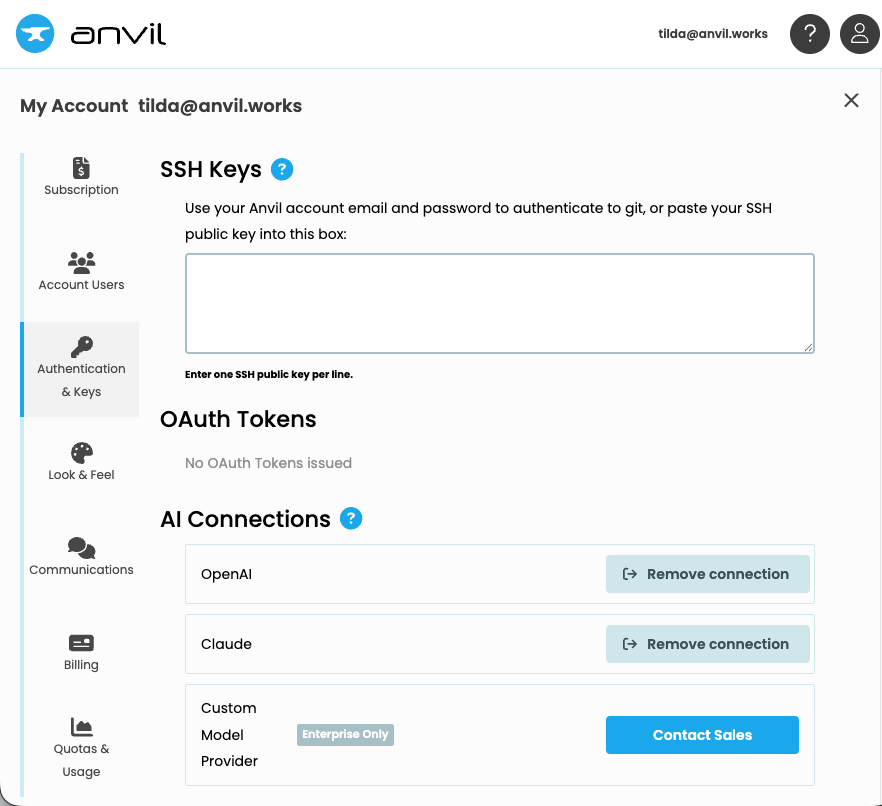
Manage AI connections in your account settings
Do you still have questions?
Our Community Forum is full of helpful information and Anvil experts.