

The Agent chat window
The Agent chat window is where you interact with the AI agent in the Anvil Editor. You can open the Agent chat window by clicking from the Sidebar Menu.
Here is the Agent chat window with the most important parts labelled:
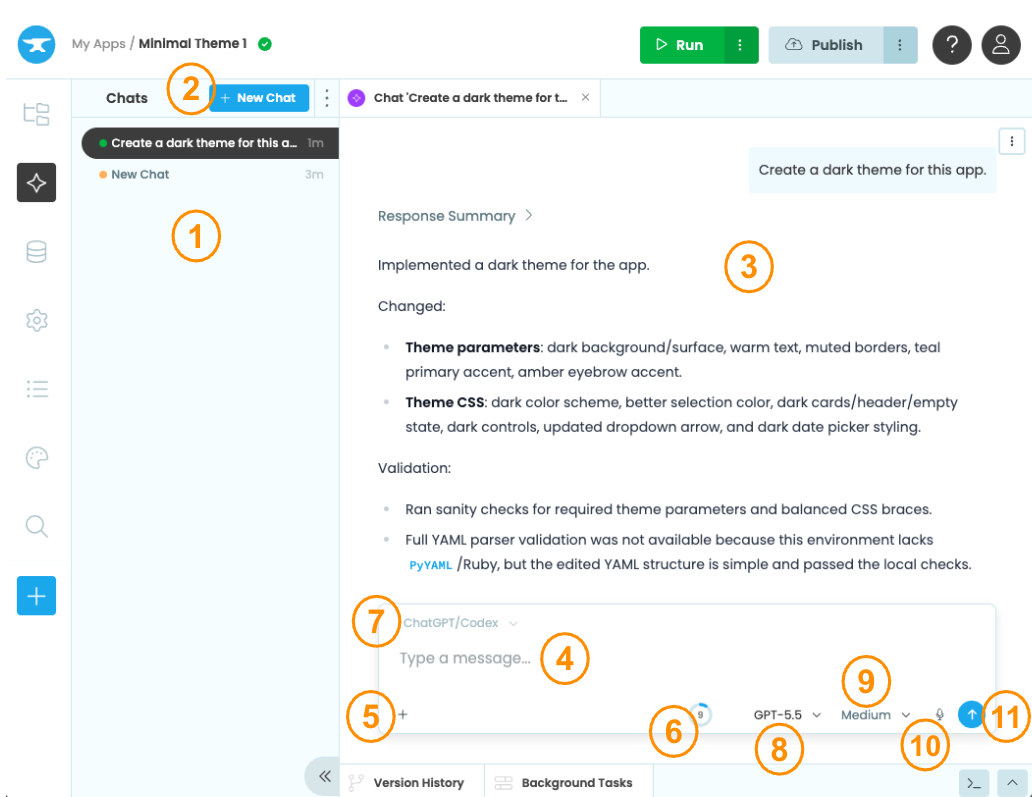
The Agent chat window (shown in Editor Tab view)
- The Chats panel lists all your chats for that app. Click a chat to open it. Each chat item shows how long ago the chat was active and a status dot representing the session state. Hover over a chat item to reveal the Conversation menu () to delete the conversation.
- The Conversation area is where your prompts and the agent’s responses appear.
- The Prompt box is where you type and send your prompts to the agent. Type
/to see available skills and commands. A skill is a set of reusable instructions that tells the agent how to approach a specific type of task. Type@followed by a name to mention a specific Form or Module in your app and the prompt box will autocomplete the name. - Click the Attachment button (+) to attach images up to 10MB to your prompt.
- The Context window tracks the agent’s available memory for the current conversation. It shows how much conversation history the agent can see and reference, as a percentage and token count. The agent automatically compacts the conversation when the context window is full. See Prompting best practices for tips on when to compact manually.
- The Model selector lets you choose the AI model and effort level for your prompt. Under Model, choose from the available models for your connected provider. Under Effort, choose how much thinking the agent does before responding. Higher effort gives better results but takes longer.
- Click the Dictate button () to dictate your prompt using your microphone. Only available in Chrome-based browsers.
Chat window positions
The chat window can be displayed in different positions in the Anvil Editor. To change position, click the menu () at the top of the Chats panel, or click Move at the top right of the open conversation.
- Sidebar: opens the conversation in the sidebar.
- Bottom Panel: opens the conversation as a tab in the bottom panel, alongside Version History and Background Tasks.
- Editor Tab: opens the conversation as a tab in the main editor area.
Resetting your Agents
To reset all running agent sessions in the current app, click Reset all my Agents from the menu () at the top of the Chats panel or from the menu next to the Move button in the open conversation. Running agents will lose their unsaved progress and conversations will need to be reloaded and resumed.
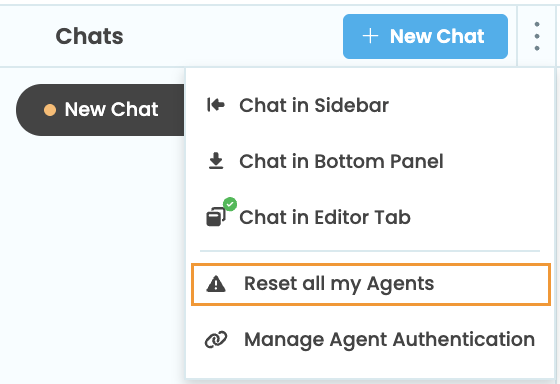
Reset all running Agent sessions
Agent activity
Each chat in the Chats panel shows a status dot representing the current session state. Hover over the dot to see the status.
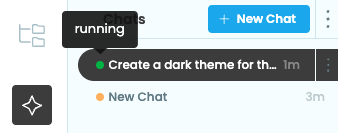
Hover over a status dot to see the current session state
The possible statuses are:
- needs_auth_to_start: authentication is required. You will be prompted to choose and connect to an AI provider in the conversation area.
- needs_auth_to_continue: your session requires re-authentication. A login button will appear above the prompt box to reconnect.
- pending: the agent session is being set up
- running: the agent is active and ready to receive prompts
- stopped: the agent session has ended. Sending a new prompt will start a new agent and resume the conversation.
Do you still have questions?
Our Community Forum is full of helpful information and Anvil experts.